

Dreaming is on by default. It runs nightly, merges and deletes memory items and custom skills, and uses workspace credits each night it has conversations to read. Turn it off if you’d rather curate memory by hand.
What CloudThinker remembers
Agents write memory themselves while they work. You don’t have to tag anything, and raw transcripts are never copied into memory.
Each memory item has one type. Pick the type by what the item is:
Ongoing work is also tracked as a task: a memory item that holds the task’s status (active, blocked, or done), decisions, blockers, and next steps. Tasks show in More → Workspace settings → Memory like any other item, and each one gets a one-line entry in the memory index (see Limits).
Two products keep their own specialized memory on the same foundation: Incident Memory for Resolve investigations and Learnings for Review. To choose between memory, knowledge bases, skills and runbook sources, see Teach CloudThinker.
Who can do what
The Admin lock covers direct edits only. Any member who can chat can ask CloudThinker to change, delete, or restore an item, and there’s no setting to restrict that short of giving the member the Viewer role. Every save is recorded in the item’s revision history with the member, agent, and conversation behind it. To see who changed an item, ask in chat: “Who changed the on-call handover item, and what did it say before?”
See roles for how roles are assigned.
Browse memory
1
Open the Memory tab
Go to More → Workspace settings → Memory.
2
Find an item
Scroll the Memory list, grouped by type and newest first, or type in Search memory. Each row shows the item’s name (for example 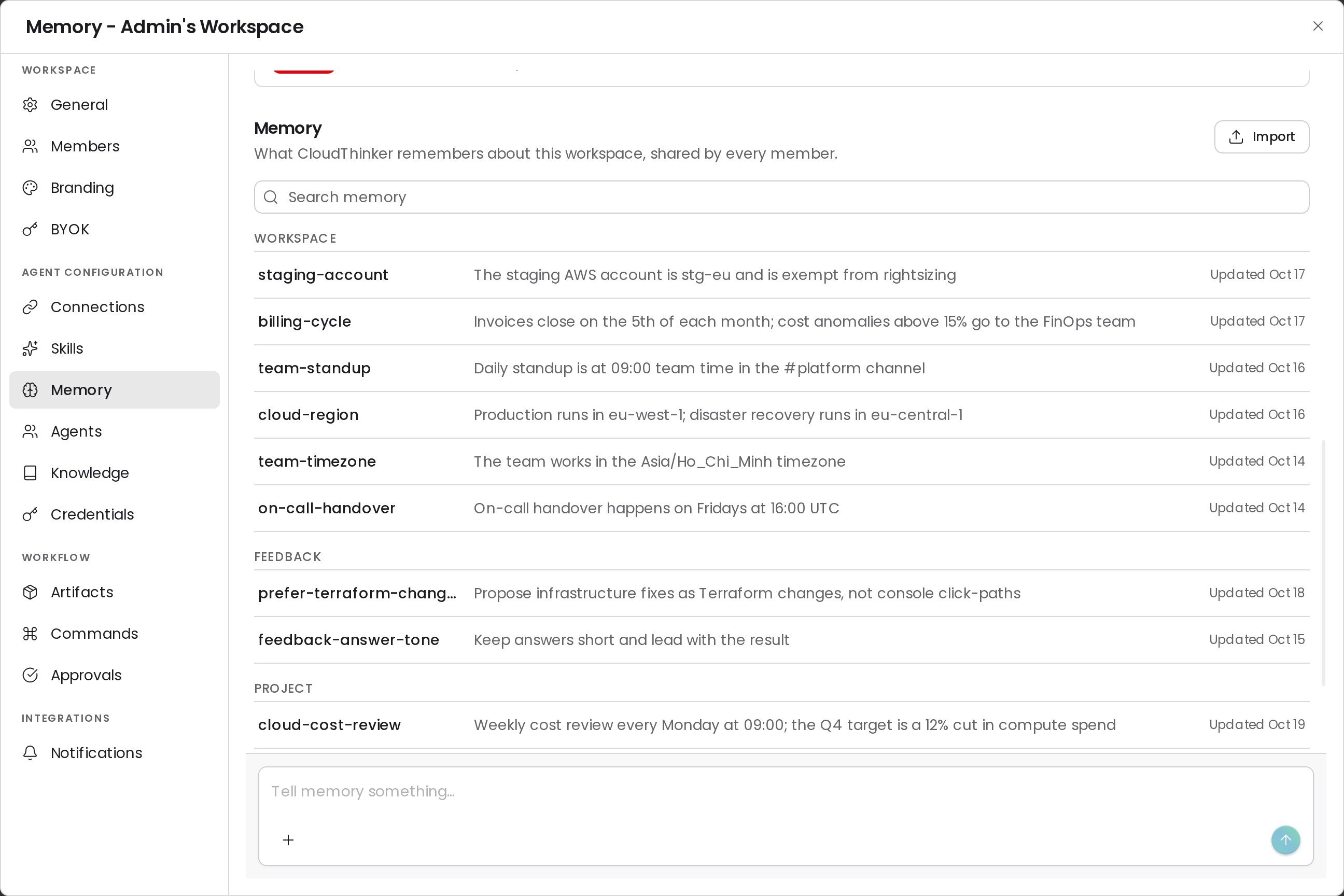
cost-report-routing), set by the agent that created it, and its one-line summary. Search matches names and summaries, not the full details.3
Open the item
Click a row to see Last updated, the one-line Summary, and the Details in Markdown.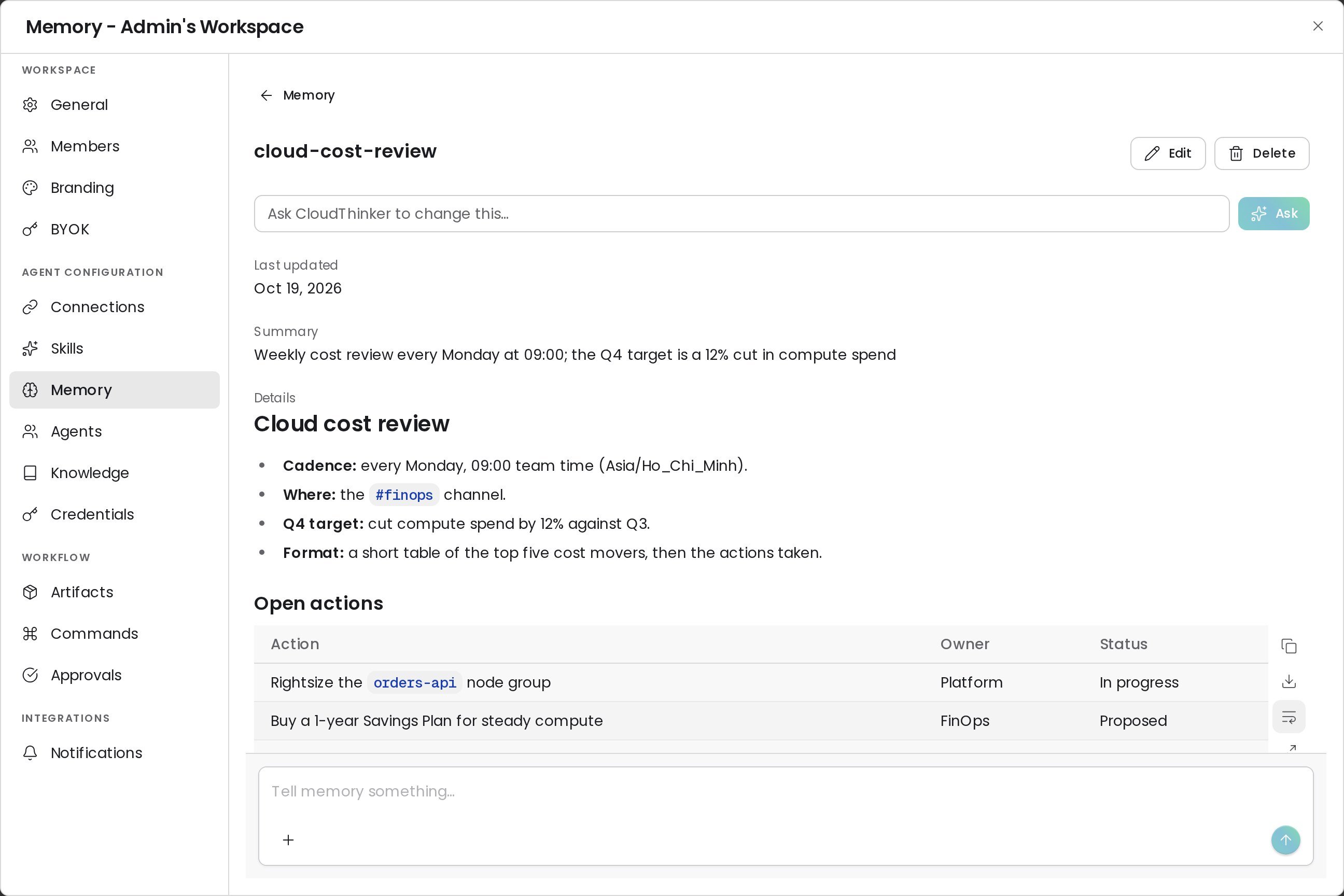
Teach or correct memory
The fastest way to change memory is to tell CloudThinker, in any chat or from the Memory tab. Each correction applies to every later conversation in the workspace.Edit or delete an item
Workspace Admins can change an item directly, without a chat turn. Other members see Edit and Delete locked and use Ask CloudThinker to change this… instead.1
Open the item
In More → Workspace settings → Memory, click the item.
2
Edit it
Click Edit. Change the Summary (one line, up to 200 characters), the Type, or the Details (Markdown), then click Save. The name is set by the agent that created the item and can’t be edited here. To rename an item, ask CloudThinker in chat.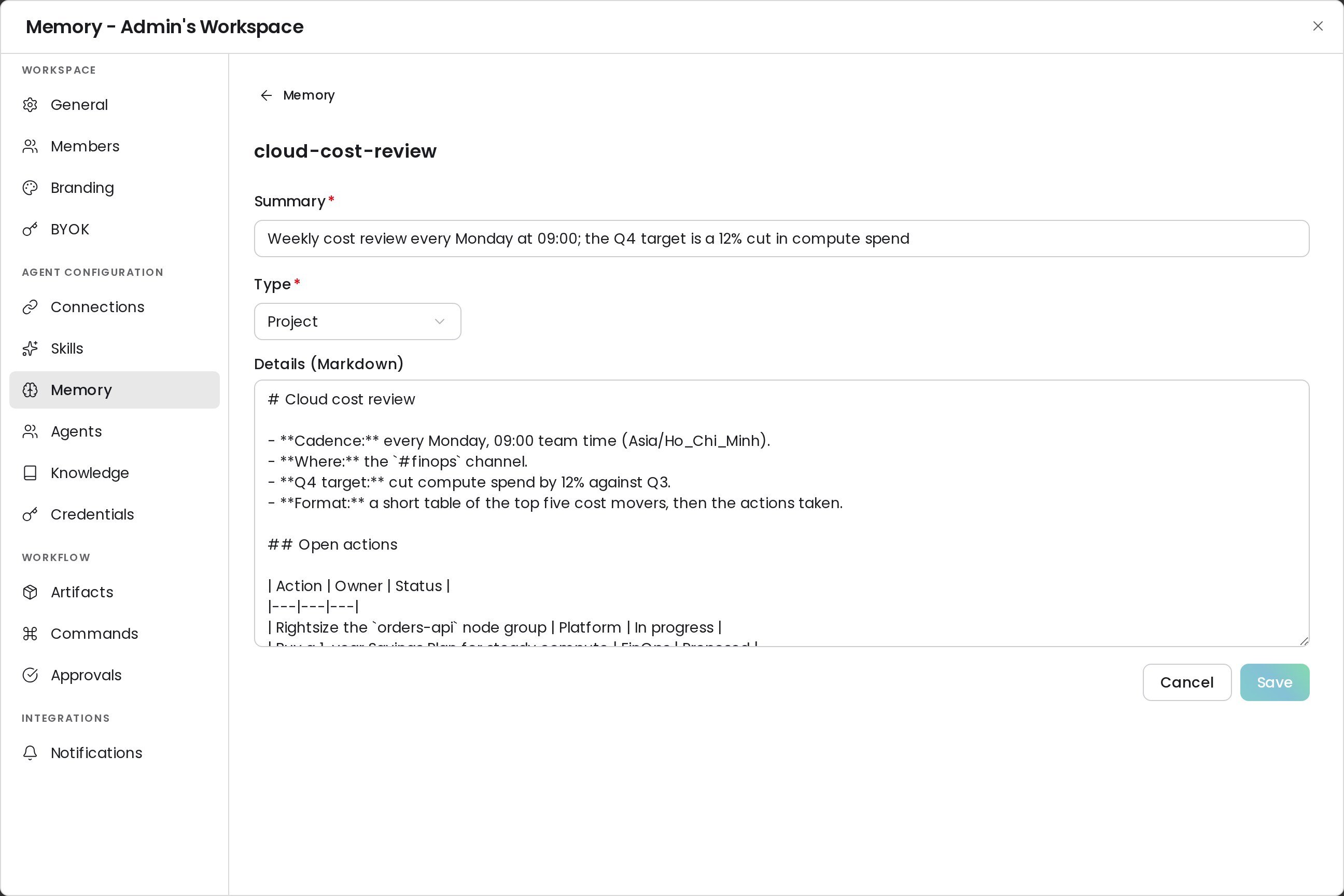
3
Or delete it
Click Delete and confirm Delete this memory item?. CloudThinker forgets the item for every member. A copy stays in the revision history.
If a secret lands in memory
Import and agents are told to skip secrets, but the agent decides what counts as one, so a secret can still slip through.- Delete the item, or ask CloudThinker to remove the secret from it.
- Rotate the secret in the system it belongs to. Deleting the item doesn’t remove copies already in its revision history, and the app has no control to purge them, so treat the secret as exposed. To ask about removing it from history, email support@cloudthinker.io with the item name.
- Store the new value as a credential.
Import memory from another AI tool
Bring what another assistant already knows about your team, so you don’t start from zero.1
Open Import
In More → Workspace settings → Memory, click Import (or the + in the Tell memory something… box). The Import memory to CloudThinker dialog opens.
2
Copy the prompt
Click Copy and paste the prompt into a chat with your other AI tool. It asks that tool to export everything it knows about your team, infrastructure, projects, and conventions as Markdown.
3
Paste or upload the answer
Paste the answer into the text box, or drag files into the drop zone. Pasted text is limited to 200,000 characters; upload anything longer as a file. You can add up to 5 files per import in .md, .txt, .json, .csv, or .pdf.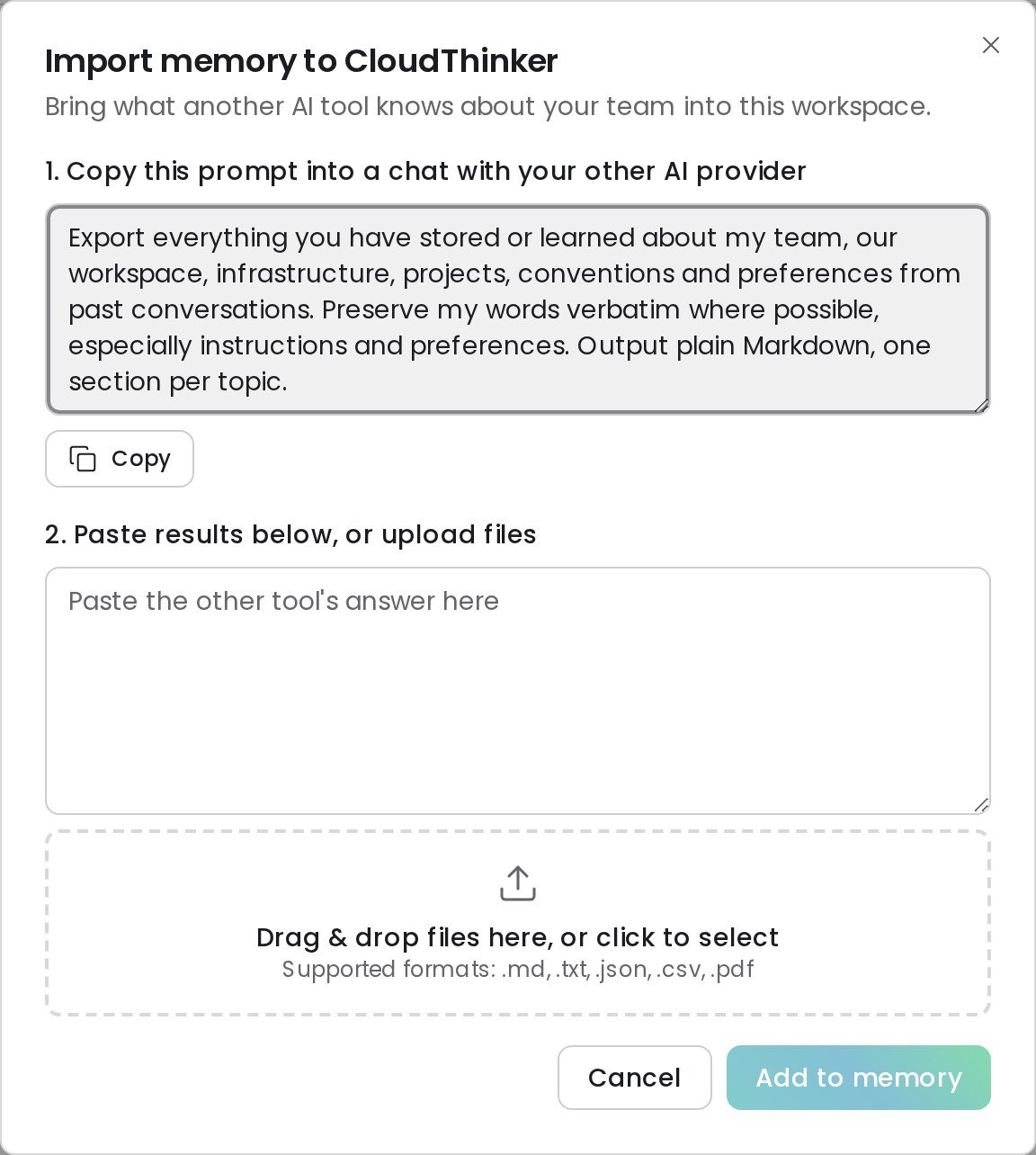
4
Add it
Click Add to memory. A Memory chat opens and CloudThinker splits the content into items, merges it with what already exists, and skips secrets and credentials. A Memory chat (from Import, Tell memory something…, or Ask CloudThinker to change this…) is a regular chat and uses credits like one. See Usage.
Limits
Ask about past conversations
Agents can search and read earlier conversations in the same workspace and use them as evidence. Ask “Which chats last week mentioned the payments RDS instance?”, or paste a CloudThinker chat link and ask the agent to continue from it. Search covers conversations from every member of the workspace, not only yours, so treat workspace chats as visible to the team. It never reaches other workspaces, deleted conversations, or the conversation you’re in. A conversation can’t be marked private or excluded, so deleting it is the only way to keep it out of search. Old instructions found this way are treated as background facts, so your current request always wins.Prompt suggestions in the composer
When recent conversations left open next steps, the empty chat composer shows up to three suggested prompts, each tagged with the conversation it came from. Suggestions draw on roughly the last week of workspace activity. Typing filters them.
There’s no workspace setting to turn suggestions off. An instance admin (whoever runs a self-hosted CloudThinker install; on CloudThinker cloud, email support@cloudthinker.io) can switch them off for the whole instance.
Troubleshooting
The tab says Memory is not ready yet
The tab says Memory is not ready yet
Workspace memory couldn’t be read at that moment. Your items are safe. Click Retry after a few seconds.
Memory is updating. Showing the last saved copy.
Memory is updating. Showing the last saved copy.
A recent chat or Dreaming run wrote to memory and the list hasn’t caught up. The page refreshes on its own every few seconds until the new version shows.
Saving shows This item changed since you opened it
Saving shows This item changed since you opened it
Dreaming or a chat edited the item while you had it open. Click Reload to see the new version, then make your change again. Your unsaved edits are replaced.
Edit, Delete, or Import is locked
Edit, Delete, or Import is locked
Edit and Delete need the workspace Admin role. Import and Tell memory something… need permission to chat, which Viewers don’t have. Ask a workspace Admin.
An agent keeps using an outdated fact after I corrected it
An agent keeps using an outdated fact after I corrected it
Another item probably still holds the old fact. Type a keyword from it in Search memory, then edit or delete the conflicting item (or ask CloudThinker to). If it comes back the next morning, open the latest run in Dreaming Run history: the summary lists the items it wrote. Add a focus instruction that names the correct fact.
The list says No memory yet
The list says No memory yet
CloudThinker hasn’t saved anything for this workspace. Chat with it about your environment, send a note through Tell memory something…, or import from another tool.
FAQ
Is memory per user or per workspace?
Is memory per user or per workspace?
Per workspace. Every member’s conversations read and write the same memory. Only prompt-suggestion dismissals are personal.
Can I turn memory off, clear it, or export it?
Can I turn memory off, clear it, or export it?
Not per workspace. A workspace can turn off Dreaming, but not memory itself. An instance admin can switch off workspace memory for the whole instance. There’s no bulk clear or export: delete items one by one in More → Workspace settings → Memory, or ask CloudThinker in chat to remove them.
How is memory different from the knowledge base?
How is memory different from the knowledge base?
You upload documents to the knowledge base and agents search them when needed. Memory is written by agents from what they learn while working, and it loads into every conversation automatically.
Next steps
Dreaming
Control the nightly run that merges and prunes memory
Knowledge Base
Upload runbooks and docs agents can search
Incident Memory
Reuse lessons from past investigations in Resolve
Agents
See how CloudThinker and custom agents use memory