

Set up notifications
1
Open notification settings
Navigate to Notifications — or open Chat Settings (the gear icon beside the + button in the chat prompt box) and select Notifications under Integrations.
2
Select a feature category
Choose which CloudThinker feature to configure (Alerts, Agents & Tasks, Review, and so on).
3
Enable channels
Toggle Email, Slack, and/or Microsoft Teams on for the selected feature.
4
Set a severity threshold
Choose the minimum severity that triggers a notification (Critical, High, Medium, Low).
5
Verify external email addresses
For recipients outside the workspace, ask them to confirm the verification link sent to their address.
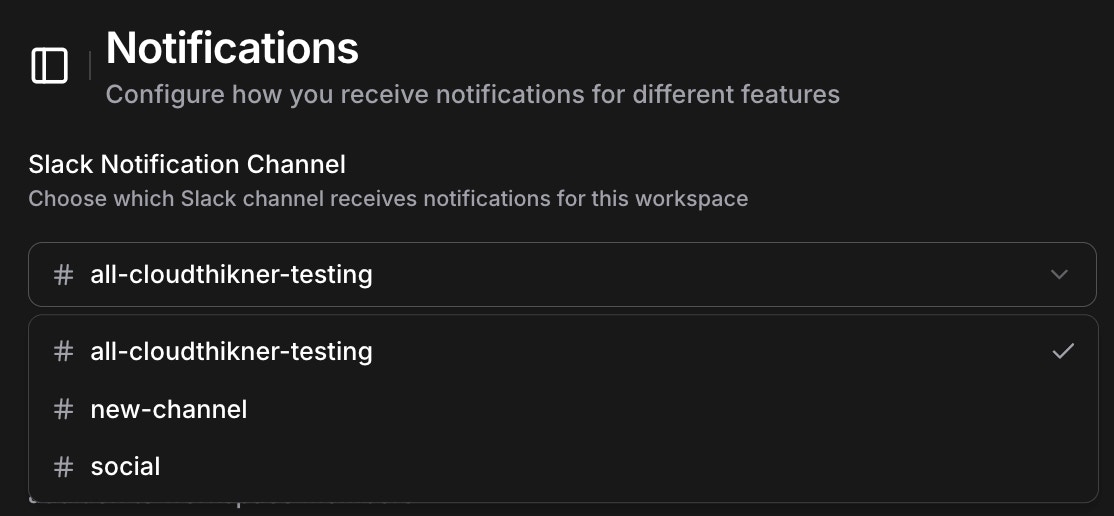
Main Notifications settings page with Slack notification channel configuration
Notification preferences are workspace-scoped — configure each workspace you belong to separately, with its own channels and thresholds.
Notification categories
Each feature category is configured independently, with its own channels and severity threshold.Alerts
System-wide alert notifications for critical events and important operational updates.Agents & tasks
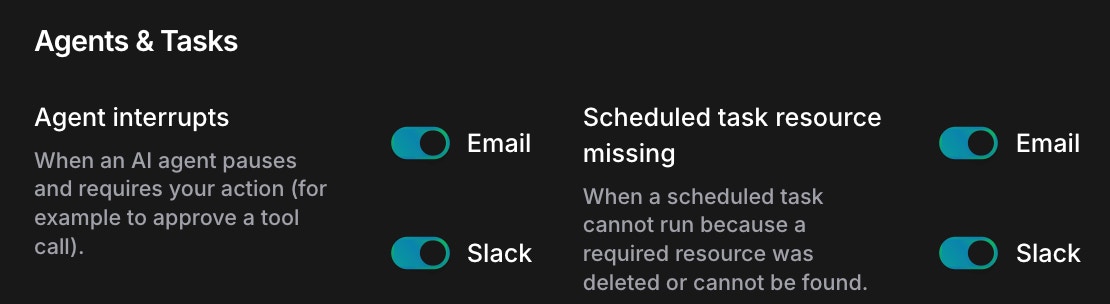
Configure notifications for agent interrupts and scheduled task failures
- Agent Interrupts — an agent pauses and requires your action, for example to approve a tool call
- Scheduled Task Resource Missing — a scheduled task cannot run because a required resource was deleted or is unavailable
Review / pipeline monitoring
An Agent CLI session sends no Agent Interrupt notification by itself, because the approval card is already in the terminal and in the browser. Run
/cloudthinker notify in the session to send the request to the workspace approvers once.Review / Pipeline monitoring
Pipeline monitoring
- Pipeline execution status updates
- Pipeline failure notifications with AI-analyzed logs
Code review findings
When an AI code review completes on a pull/merge request, CloudThinker sends a notification with:- Severity summary — count of critical, high, medium, and low findings
- Finding details — title, severity, file path, and line number for up to 10 findings
- Resolved tracking — count of previously identified findings that have been resolved
- Action link — direct link to the code review dashboard
Code review findings notifications are sent automatically after each review completes. Set the threshold to High to hear only about critical or high-severity findings.
Discussions
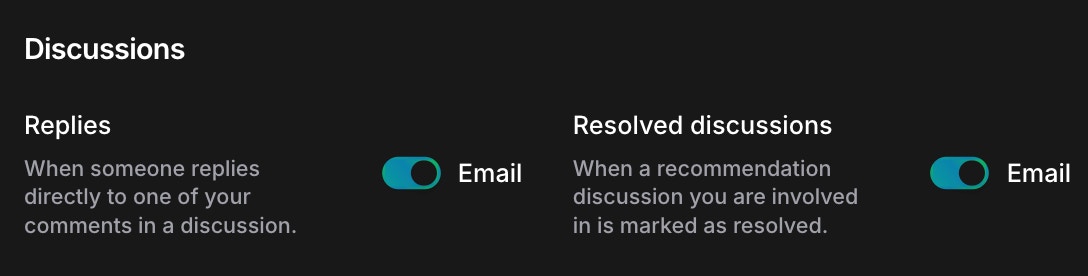
Configure notifications for discussion replies and resolved discussions
- Replies — someone replies directly to one of your comments
- Resolved Discussions — a discussion you are involved in is marked as resolved
Resources
Infrastructure resource changes and updates.Optimize
Cost-side notifications from Optimize, the cost-optimization module:- Optimize refresh paused — a connection needs attention before Optimize can refresh its cost data. Spend figures stop updating until the connection is fixed; see when a connection breaks.
- Optimize report ready — a scheduled cost report finished and is ready to read, with a link to its conversation.
Connections
One category pair covers connection health for every provider:- Connection needs attention — a connection’s credentials stopped working in the background (an expired token, a revoked key), so scheduled work that depends on it pauses. You get one notification per outage, not one per failed retry, and only for failures found in the background — a connection test you run yourself never notifies.
- Connection discovery finished — discovery, the automatic read-only first look at a newly connected service, published opportunities that are ready to review.
Channels
In-app
Every notification always lands in the notification center inside CloudThinker — in-app delivery is always on and has no toggle. Channel switches and severity thresholds control only external delivery, so the center stays the complete record even for categories muted on every other channel.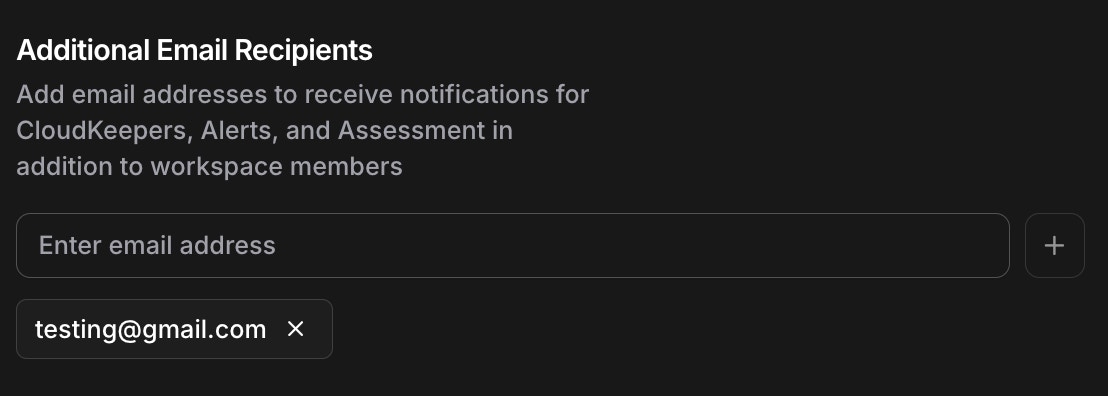
Add multiple email addresses for notifications with verification
Slack
Notifications route to Slack channels rather than direct messages, so the whole team sees them in one place and members opt in by joining the channel. The channel picker filters as you type — the search matches partial names and is case-insensitive.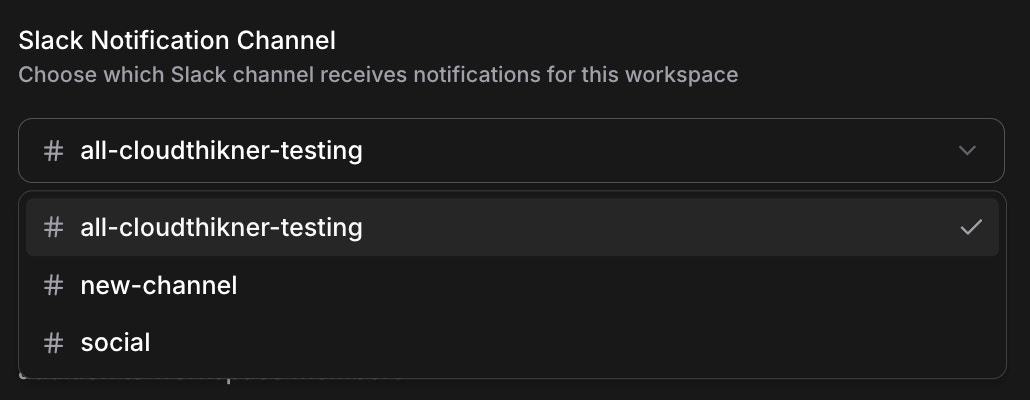
Select Slack channels for routing notifications to your team
Microsoft Teams
Teams notifications work the same way as Slack — pick a channel per feature category and set severity thresholds. Messages arrive as Adaptive Cards with structured data and action buttons. Connect the Teams integration first.Google Chat
Shared Google Chat spaces mapped to the workspace can receive notifications; direct messages cannot. Connect the Google Chat integration, then select a mapped space per feature category.Severity filtering

Configure severity thresholds for Alerts notifications via email and Slack
Thresholds are independent per channel — for example, Slack at Medium and above while email stays at High and above.
Best practices
- Start with Critical and High severity, then add lower levels as your team settles in.
- Route team notifications to Slack, Teams, or Google Chat channels instead of individual inboxes.
- Turn off categories your team does not actively manage.
- Keep sensitive operations in dedicated channels with restricted membership, and review recipients periodically.
- Tailor thresholds by role — someone covering many features needs a higher floor than a specialist.
Next steps
Slack integration
Connect your Slack workspace for channel notifications and chat

Teams integration
Connect Microsoft Teams for Adaptive Card notifications
Google Chat integration
Map Google Chat spaces to receive workspace notifications
Manage workspaces
Configure per-workspace settings and access