

Prerequisites
- The connections edit permission to change Tool Permissions
- The workspace-settings edit permission to switch between Manual and Auto
Why approval
- You choose tool by tool. Each connection tool can be Always allow, Needs approval, or Never allow.
- Reads can pause too. A read-only connection tool can use Needs approval in Manual mode.
- The decision is local. A required-approval decision pauses one inline tool call, not every action in the conversation.
- The record stays visible. The tool call and its outcome remain in the conversation.
The three Approval tabs
Approval opens on Approvers.
Configure tool permissions
1
Open Approval
Open Chat Settings from the gear icon in the chat prompt box, immediately to the right of the + button, then select Approval under Workflow. You can also start from Connections.
2
Select Tool Permissions
Select the Tool Permissions tab.
3
Select a connection
Select the connection whose tools you want to control.
4
Set each tool permission
Choose a setting for each connection tool:
- Always allow
- Needs approval
- Never allow
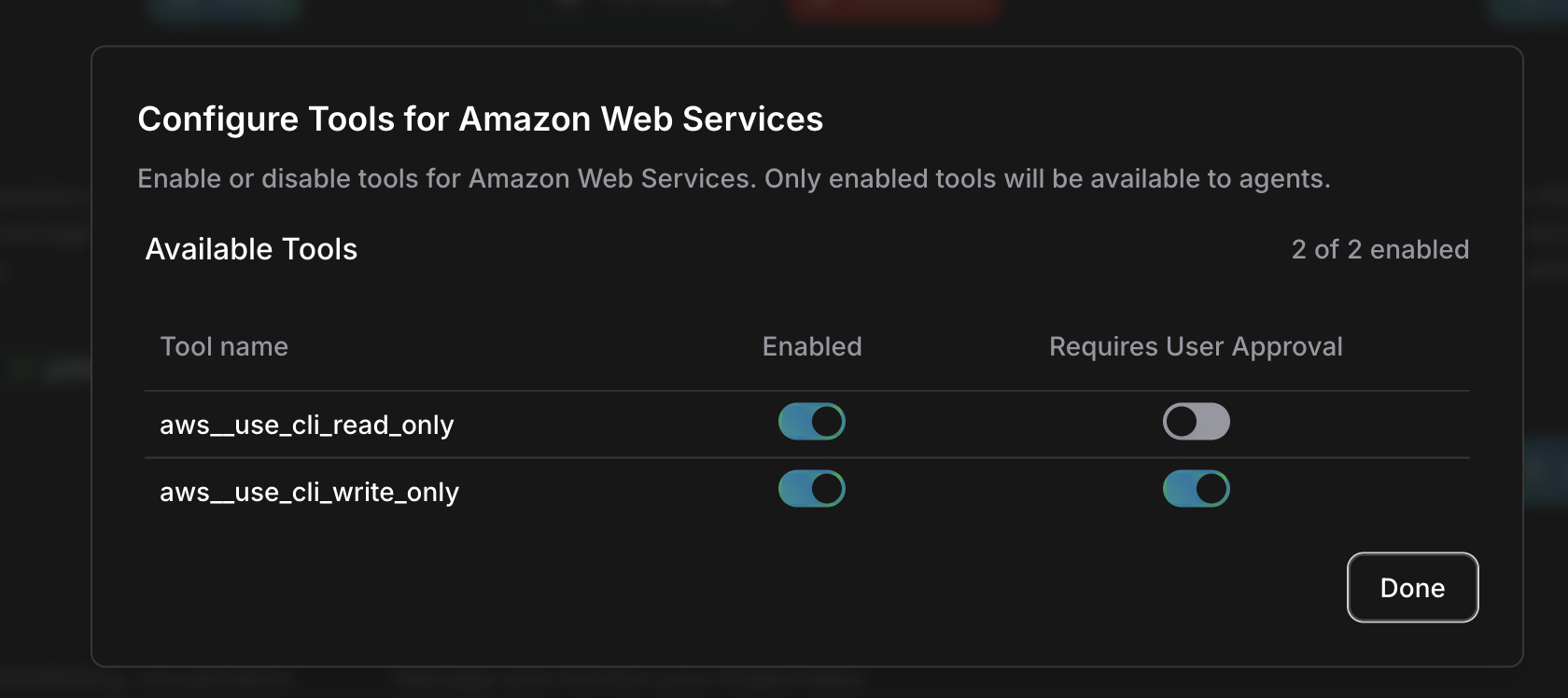
Tool permission behavior
Set the control on the tool, not by tool type. A connection read tool can be set to Needs approval and pause in Manual mode.
The approval call
When a Manual Needs approval call occurs, the agent pauses on that tool call. Review the operation, its reason, and the available details before you choose Proceed or Cancel.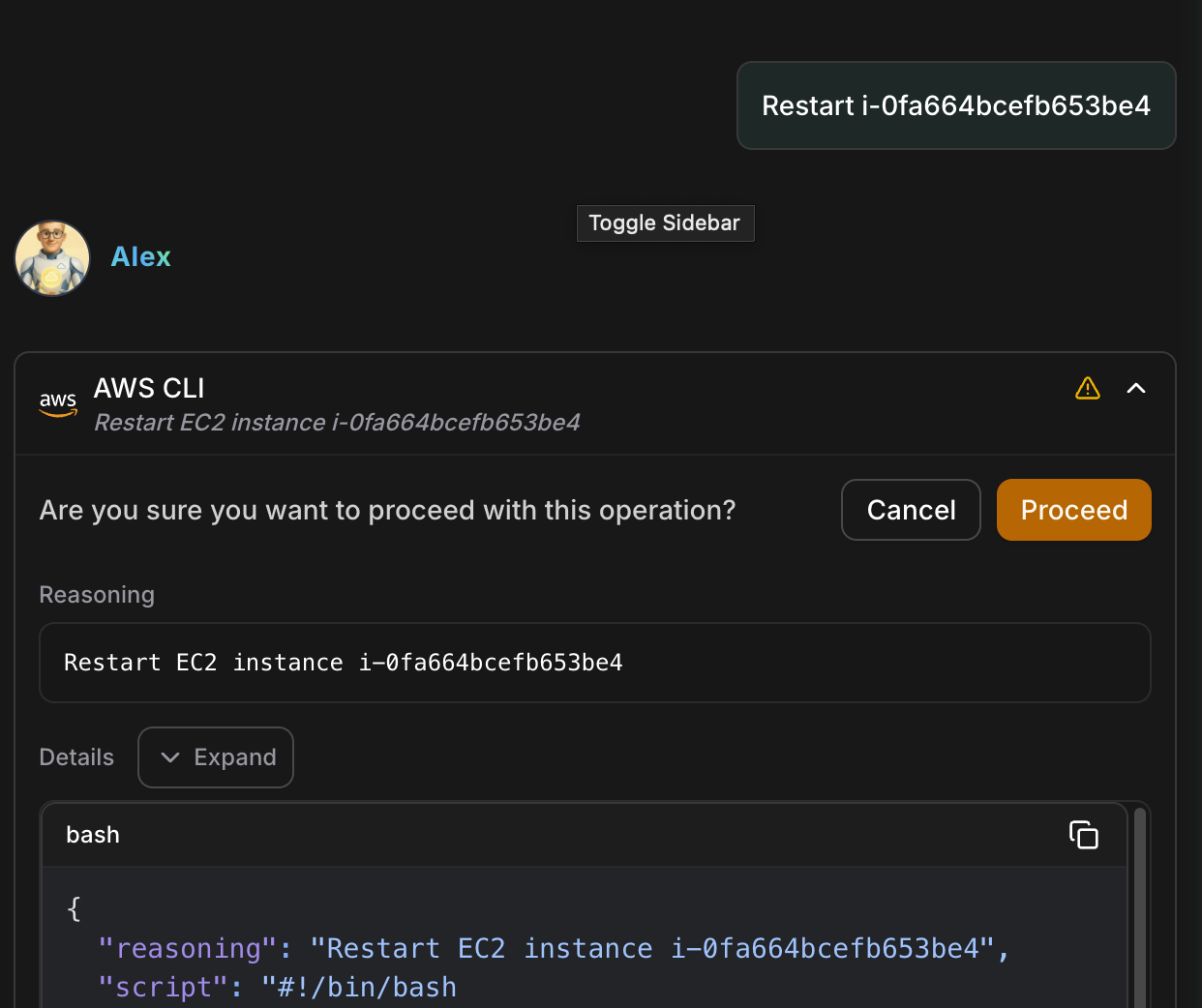
Manual, Auto, and Tool Permissions
The two workspace modes describe how agents run:
Select Manual or Auto from Agent settings in the chat prompt box, or from the Auto Mode control at the top of the Approval page. The choice is workspace-scoped and takes effect immediately, with no confirmation step. Tool Permissions remain per-tool controls; in Manual mode, they decide whether each connection tool runs, pauses, or stays unavailable. When Auto is selected, Auto Mode makes the decision instead and these per-tool settings are not applied.
Without the workspace-settings edit permission you see the current mode read-only, marked “Managed by workspace admins”.
In Auto mode the per-tool control is replaced by a read-only badge: Classifier for a write (Auto Mode’s safety check decides it), Allowed for a read. Switch back to Manual to edit them.
When Auto is selected, known read-only calls run without a check, and each write receives an Auto Mode decision before it runs: allowed, paused for your approval, escalated, or denied by policy. Auto Mode describes each outcome and its FAQ.
How a tool call is decided
The decision is per tool call. A paused call waits for Proceed or Cancel, and the outcome stays visible in the conversation either way.Related
Auto Mode
See the decision each agent write receives in Auto
Automations
Run agent instructions on schedules, webhooks, and repository events
Agents
Learn how agents work and collaborate
Connections
Set up cloud and service connections