

Before you start
Set the default policy
The default policy applies to every workspace that has no override of its own.1
Open Credit Limits
Go to Admin Settings → Credit Limits.
2
Choose what happens at the limit
Under When a workspace hits its monthly limit, pick Throttle or Notify only. How enforcement works explains the difference.
3
Set the default limit
In Default monthly limit per workspace, enter a credit amount, or choose Unlimited to track usage without a cap.Not sure what to enter? Open Admin Settings → Usage, pick Last 30 days, and check By Workspace. Start about 20% above a typical workspace’s monthly spend.
4
Pick the alerts
Under Alert the organization owner at, check 80% of monthly limit, the 100% (limit reached) option, or both. Only the Owner gets these alerts, so Admins and workspace leads should watch the meters on this page.
5
Save
A bar with Save and Discard appears at the bottom of the page once you change something. Click Save. The bar disappears when the policy is stored.
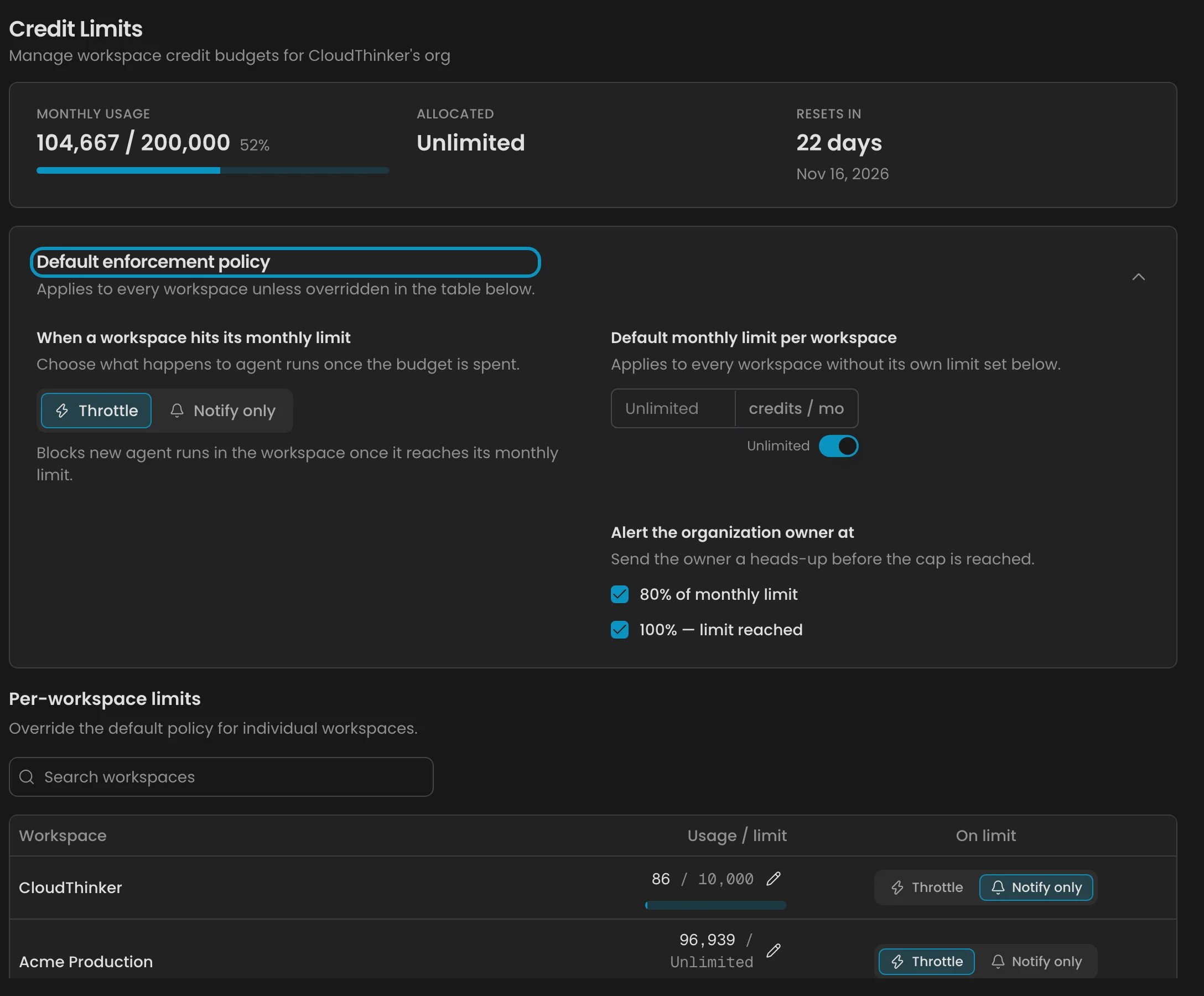
Credit Limits: the default enforcement policy and per-workspace limits
Override one workspace
Use an override when a workspace needs a different budget or a different enforcement mode. For example, give production 20,000 credits on Notify only, and cap a sandbox at 2,000 on Throttle.1
Find the workspace
Scroll to Per-workspace limits and type in Search workspaces to filter the table.
2
Edit its limit
In the Usage / limit column, click the pencil icon next to the workspace’s numbers. Enter a credit amount, or choose Unlimited. The meter shows usage against the limit for the current cycle.
3
Set its enforcement
In the On limit column, click Throttle or Notify only for that workspace alone.
4
Save
Click Save in the bottom bar. The override wins over the default policy. Every other workspace keeps following the default, and shows inherits default under its numbers.
How enforcement works
- The limit is checked when a run starts. A run already in progress finishes, so a workspace can end slightly above its limit. If you set a limit below what a workspace has already spent this cycle, Throttle applies from its next run.
- Limits follow your billing cycle. Each workspace’s counter resets when your credits do. That’s monthly, including on annual plans.
- Alerts go to the organization owner only as an in-app notification and an email, once per threshold per cycle, usually within an hour of crossing 80% or 100%.
- Limits are ceilings, not reservations. The total of all limits can be higher than your pool. Setting a limit doesn’t set credits aside for that workspace.
Read the summary cards
Three cards sit at the top of the page.Troubleshooting
The page shows an upgrade prompt instead of the limits
The page shows an upgrade prompt instead of the limits
Cause: your organization is on Free or Team. Fix: the Owner upgrades to Scale, Scale Plus, or Enterprise from Billing. See Pricing.
A workspace stopped running agents and chat works only on Light
A workspace stopped running agents and chat works only on Light
That workspace is on Throttle and has hit its limit. Only free daily credits are left to it, so members can keep chatting only after they switch to Light. Raise its limit in Per-workspace limits, or switch it to Notify only, then click Save.
Couldn't refresh credit limits
Couldn't refresh credit limits
The page couldn’t load fresh data and is showing the last data it loaded. Reload the page before you edit, so you don’t save over newer values.
Related
Usage
How credits are spent, model tiers, and Pay-As-You-Go.
Pricing
Compare plans and see which ones include credit limits.