

Beta — Workers are in beta and ship with the CloudThinker CLI, which is in early access. Command names and flags may change before general availability.
Why a Worker
- Reach a private machine. The agent edits files and runs commands where your code and tools already live, without exposing them to the cloud.
- Keep credentials in the cloud. A connection command runs in the CloudThinker managed sandbox with its credential injected there. A credential never leaves the cloud onto a Worker.
- Share one machine, or keep it personal. Only you can see and use a personal Worker. A shared Worker is visible to every authorized member of the workspace.
- Use your folder’s rules and Skills. The agent reads the instruction files and the Skills that you keep in the folder.
- Route Automations too. A scheduled Automation can run on a Worker every time it fires.
- Fall back to nothing. When a Worker is unavailable, the run reports the error. It does not silently move to the cloud.
Choose where a chat runs
You pick where a chat runs in the composer, before the first message. After the first message, the choice is fixed for that conversation.1
Open the + menu
Open the + menu beside the chat prompt box. The Run in row appears when there is a choice — a Worker, a Desktop folder, or a load retry.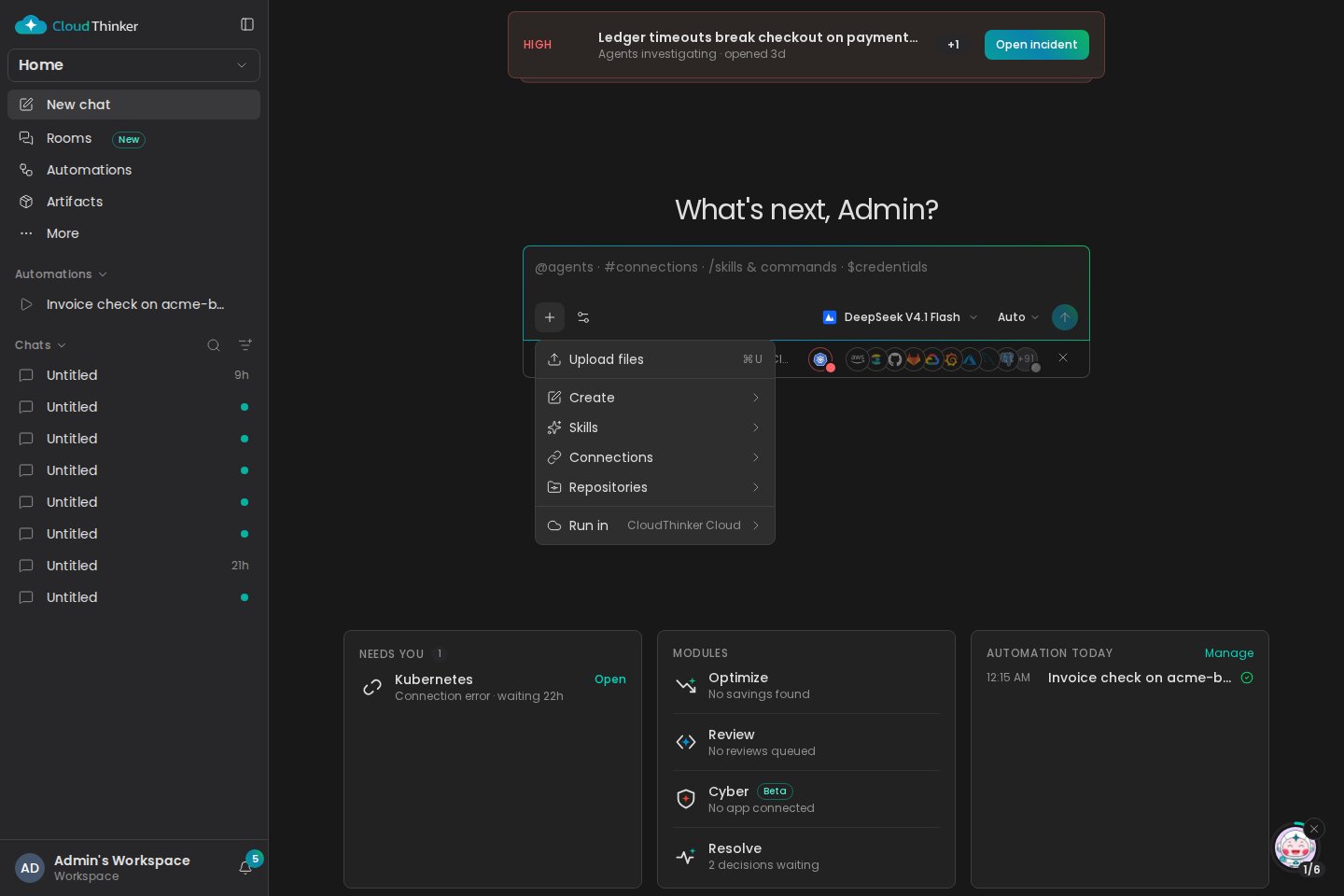
2
Select Run in
Select Run in, then choose CloudThinker Cloud or a Worker by name.Success state: a chip appears in the toolbar with the Worker’s name. Its tooltip says what runs where.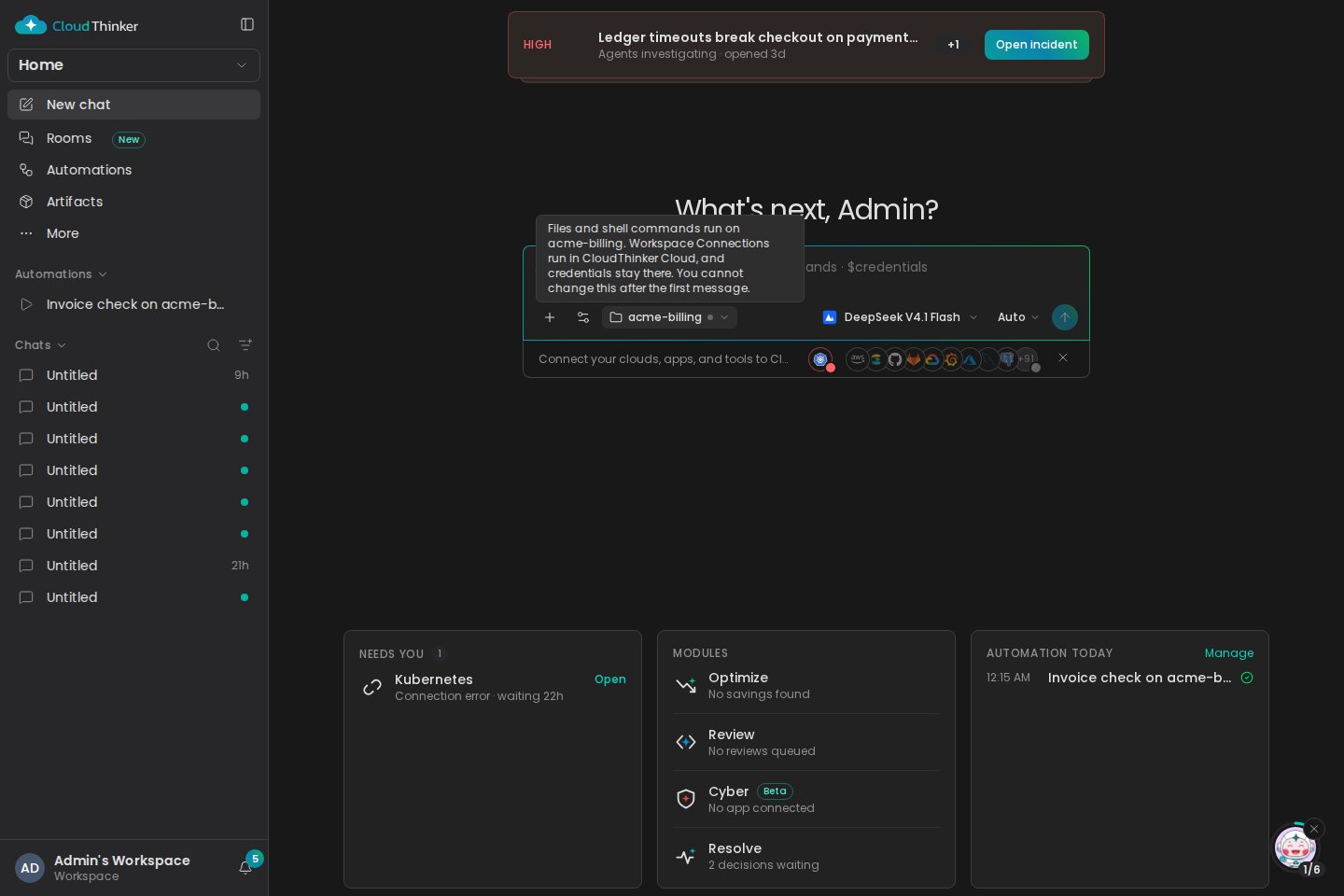
3
Send the first message
Send your first message. The conversation is now bound to that Worker.Success state: the chip shows a lock and becomes read-only. A fork or a Room thread inherits where it runs. The conversation list marks the conversation with the Worker’s name.
Set up a Worker
You can also add a Worker from the Sandboxes page, which shows the same commands. You register and run a Worker from the CLI. Install and log in first — see CLI.1
Register the Worker
--shared for a personal Worker. This stores the Worker’s credential on this machine. List what the workspace has with cloudthinker worker outpost ls.2
Serve one folder
--workdir. Shell commands start there, under your own OS account. The process serves work over outward HTTPS until you interrupt it.3
Confirm it is available
What a Worker can access
The two ways the agent touches your machine have different reach. Know both before you serve a folder.
The file boundary is enforced on the machine itself, not only in the cloud. The Worker opens
--workdir as a directory handle, so even a symlink cannot point a file tool outside the folder.
A shell command has no such boundary. CloudThinker adds no container, sandbox, or reduced privileges on your machine, so the command can do anything your account can — read ~/.ssh, write outside the folder, or reach the network.
A shell command sees a reduced environment by default: only PATH, HOME, LANG, TERM, USER, and TMPDIR. CloudThinker strips its own launcher variables. Pass one variable with --env NAME=VALUE, repeat the flag for more, or pass your whole shell with --inherit-env.
Command reference
Every command starts withcloudthinker worker. Set CLOUDTHINKER_OUTPOST_ID to omit --outpost on repeat calls.
These flags tune
worker start:
Folder rules and Skills
On the first turn, the agent reads the instruction files at the root of--workdir: AGENTS.override.md, AGENTS.md, CLAUDE.md, and GEMINI.md. It follows them for the whole conversation. Instruction files in subfolders load when the agent reads a file there.
The agent also lists the Skills in .agents/skills in the folder. Each Skill is a folder with a SKILL.md that has a description in its frontmatter. The agent reads a Skill’s body when a task matches it. Set disable-model-invocation: true to hide a Skill.
CloudThinker managed sandbox
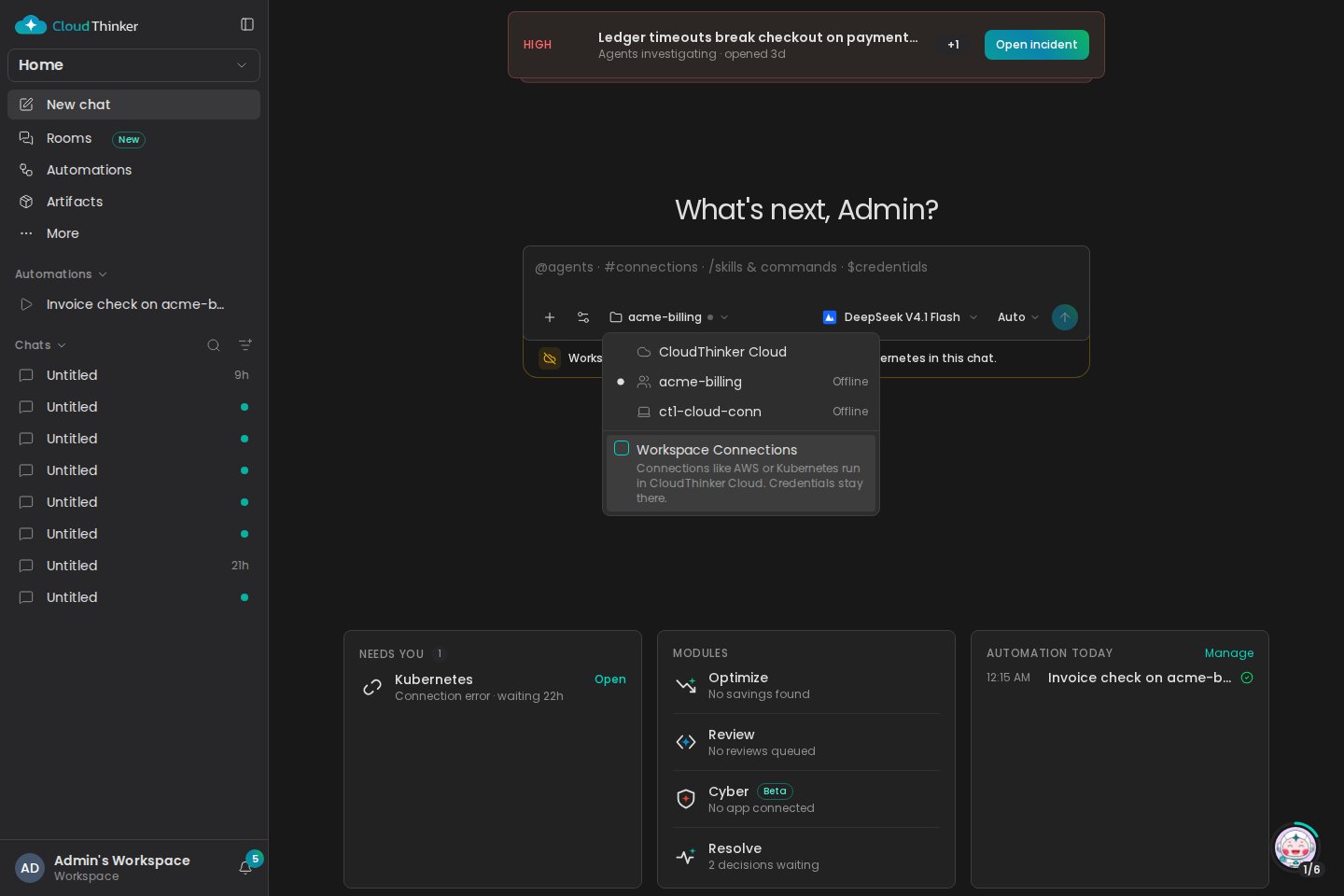
CloudThinker managed sandbox is a switch on the Worker. It controls whether the run may use the connections saved in your workspace, such as AWS or Kubernetes. It does not move the whole run to the cloud.
CloudThinker Cloud always has the switch on. The first message fixes the switch together with the Worker, and later messages cannot change it. For an Automation, flipping the switch takes effect on the next run. The chip shows a cloud icon when the switch is on, and a crossed-out cloud when it is off.
What always runs in CloudThinker Cloud
A few workloads read state that only CloudThinker Cloud holds. In a Worker conversation, each one reports an error instead of running on the Worker:- A Cyber pentest run and its report download.
- A browser-driven session.
- Repository code-graph indexing.
--workdir. A file tool reaches them there. A shell command on the Worker sees only the machine, so it cannot read or change them.
Keep a Worker running
cloudthinker worker start runs in the foreground and stops when you interrupt it. To keep a Worker available across logins, install it as a per-user service — systemd --user on Linux, launchd on macOS.
A user service lives only as long as your OS session allows; a
launchd agent does not run before you log in.
Automations
An Automation stores the same Worker and CloudThinker managed sandbox switch. Open the Automation form, set Run in, then set the switch. Only a workspace admin can change where an Automation runs.Troubleshooting
The Worker never becomes available
The Worker never becomes available
Registration is not enough. The Worker must pass server-driven file, shell, cancel, and artifact checks. The setup dialog shows the reason for a failed check. You can also run
cloudthinker worker status --outpost "<name>". Confirm the process is still running and --workdir still exists.A shell command cannot find a variable or tool
A shell command cannot find a variable or tool
A shell command sees only
PATH, HOME, LANG, TERM, USER, and TMPDIR by default. Add what it needs with --env NAME=VALUE, or pass your whole shell with --inherit-env, then restart the Worker.A file tool is rejected for a path outside the folder
A file tool is rejected for a path outside the folder
File tools are confined to
--workdir. A path outside it, or a .. that climbs out, is rejected by design. Serve the higher folder with a new Worker if the agent must reach it, or use a shell command, which is not confined.I moved the folder and the Worker stopped
I moved the folder and the Worker stopped
A Worker is pinned to one directory identity. A different directory needs a new outpost. Register one with
cloudthinker worker outpost create and start it against the new path.FAQ
Can I change where a chat runs after the first message?
Can I change where a chat runs after the first message?
No. The first message fixes the Worker and the switch. Start a new conversation to run somewhere else.
Does a Worker see my connection credentials?
Does a Worker see my connection credentials?
No. A connection command runs in the CloudThinker managed sandbox with its credential injected there. The credential never reaches the Worker.
What account do commands run as?
What account do commands run as?
The OS account that started the Worker, or the service’s login user. CloudThinker adds no separate user and no sandbox on your machine.
Can another member use my personal Worker?
Can another member use my personal Worker?
No. A personal Worker serves only you, on every turn. Another member gets
EXECUTOR_TARGET_PRIVATE, also in a fork or a Room thread of your conversation. Register a shared Worker with --shared to let the workspace use it.Can I remove a Worker?
Can I remove a Worker?
Yes. Remove it on the Sandboxes page, or run
cloudthinker worker outpost archive "<name>". Removal signs out the Worker’s process. It fails while the Worker still has an open assignment.Can two Workers serve the same folder?
Can two Workers serve the same folder?
No. One Worker holds an exclusive lock on its folder. Its own state is stored outside the served folder, so the agent never sees it.
Related
CLI
Install the CLI, log in, and run the agent from your terminal
Approval
Decide which agent actions need your approval before they run
Automations
Schedule an agent to run on a trigger, in the cloud or on a Worker
Connections
Set up the workspace connections a run can use