Build a custom agent in about 10 minutes once AWS is connected: add a runbook skill, create the agent, connect it, set approvals, test it.
A custom agent is a named agent you create in your workspace, next to the built-in assistant CloudThinker, with its own instructions and connections, and you talk to it by its @mention. Once AWS is connected, in about 10 minutes you’ll build one, @ec2-triage, that investigates high CPU on your EC2 instances by following your team’s runbook and asks you before it changes anything.
What you’ll need
The workspace Admin role for step 1 as written (the + button in Skills). Developers can do every other step. If you’re a Developer, create the same skill by typing /create-skill in chat and giving it the name, description, and instructions below. See custom skills.
An AWS connection that shows Connected. If you don’t have one yet, set it up first: the 10 minutes don’t include it. Its role needs to describe instances and read CloudWatch metrics; the ReadOnlyAccess policy the setup script attaches covers both (see required permissions). Any other connection works too: swap the names in the examples.
A free custom agent slot on your plan (Free includes 1). See Customize. On Free, pick Light as the agent’s Model Tier in step 2: Free runs Light only. Chatting with a custom agent in web chat counts as direct chat, so the test in step 5 works on Free.
1
Add your runbook as a skill
A skill is a set of instructions agents follow when the task matches. Open More → Workspace settings → Skills, click the + button next to Search skills (or New Skill if the list is empty), and pick Write skill instructions. Fill in:
Skill name:ec2-high-cpu-runbook
Description:Steps to investigate an EC2 instance with high CPU
Instructions:
# EC2 high CPU runbookUse this when someone reports a slow EC2 instance or high CPU.1. Check CPUUtilization for the last hour. Above 90% for 15 minutes or more counts as sustained.2. If the instance is a burstable type (t2, t3, t4g), check its credit specification. In standard mode, check CPUCreditBalance: a balance near zero means the instance is throttled.3. Check NetworkIn and DiskReadOps for a traffic spike that started at the same time.4. Recommend one fix, in this order of preference: wait out a short spike, move a burstable instance in standard mode to unlimited mode, then resize. Recommend only; don't apply it. Unlimited mode and resizing both change cost.5. Never reboot an instance tagged env=prod without a person approving it.
Skills steer what an agent does; they don’t block anything. Rule 5 is guidance only. What actually stops a write is the Manual mode you set in step 4, plus any Approval Rules.Click Create. New skills start enabled and available in Chat, which is where you test in step 5.Skills apply to every agent in the workspace, not only the @ec2-triage agent you create next, so CloudThinker also follows this runbook when a chat asks about high CPU. See Customize.Success state:ec2-high-cpu-runbook appears in the skills list with its switch on and Chat checked under Available in.
2
Create the agent
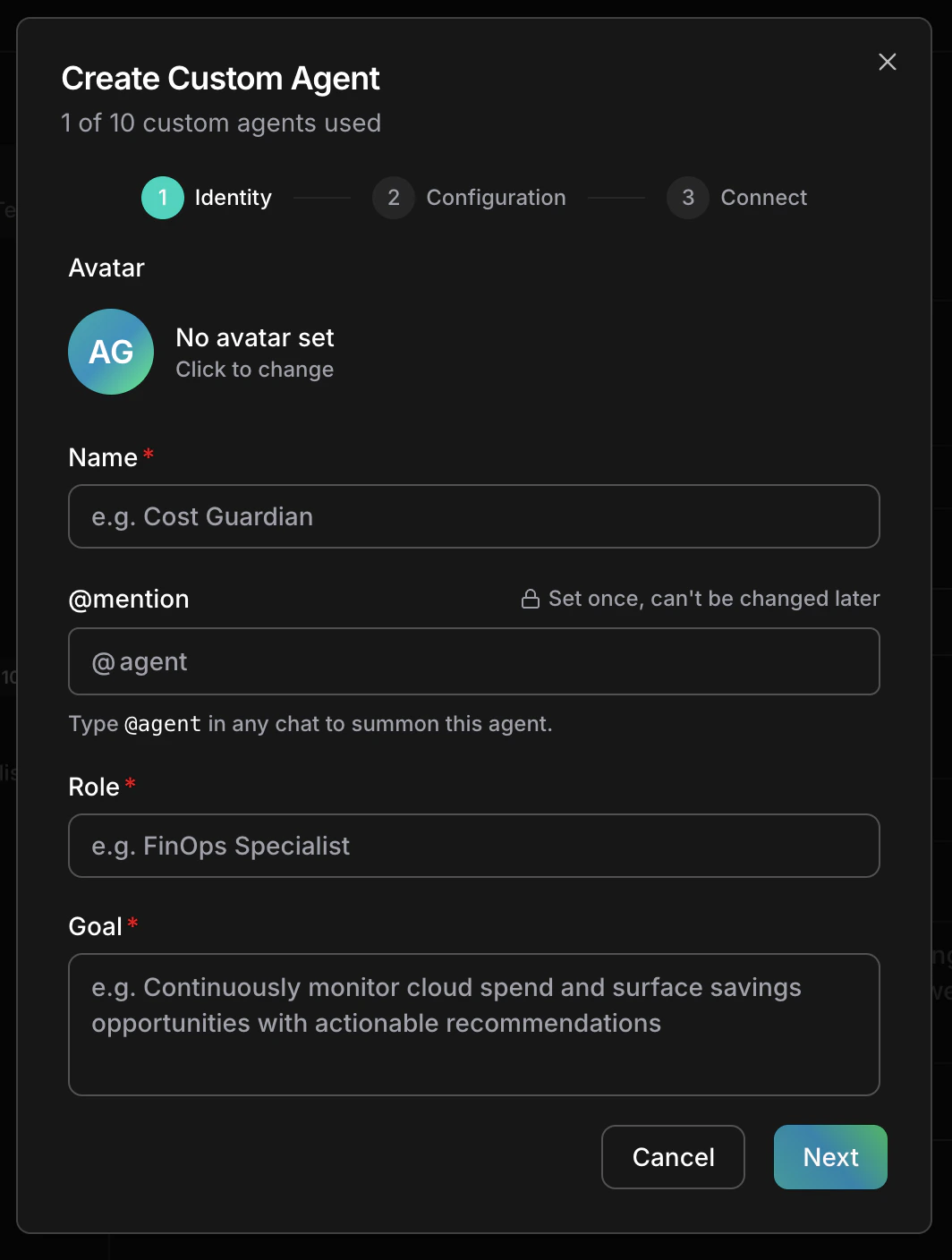
Open More → Workspace settings → Agents, click Create agent, and pick Build with form. On the Identity step, fill in all four fields (each is required):
Field
Value
Limit
Name
EC2 Triage
255 characters
@mention
ec2-triage (set once, can’t be changed later)
63 characters
Role
AWS Compute Specialist
255 characters
Goal
Find why an EC2 instance is slow and recommend the safest fix
2,048 characters
Role and Goal go at the top of the agent’s prompt, ahead of the Instructions you add next, so the agent reads them on every request. Keep them short and specific.
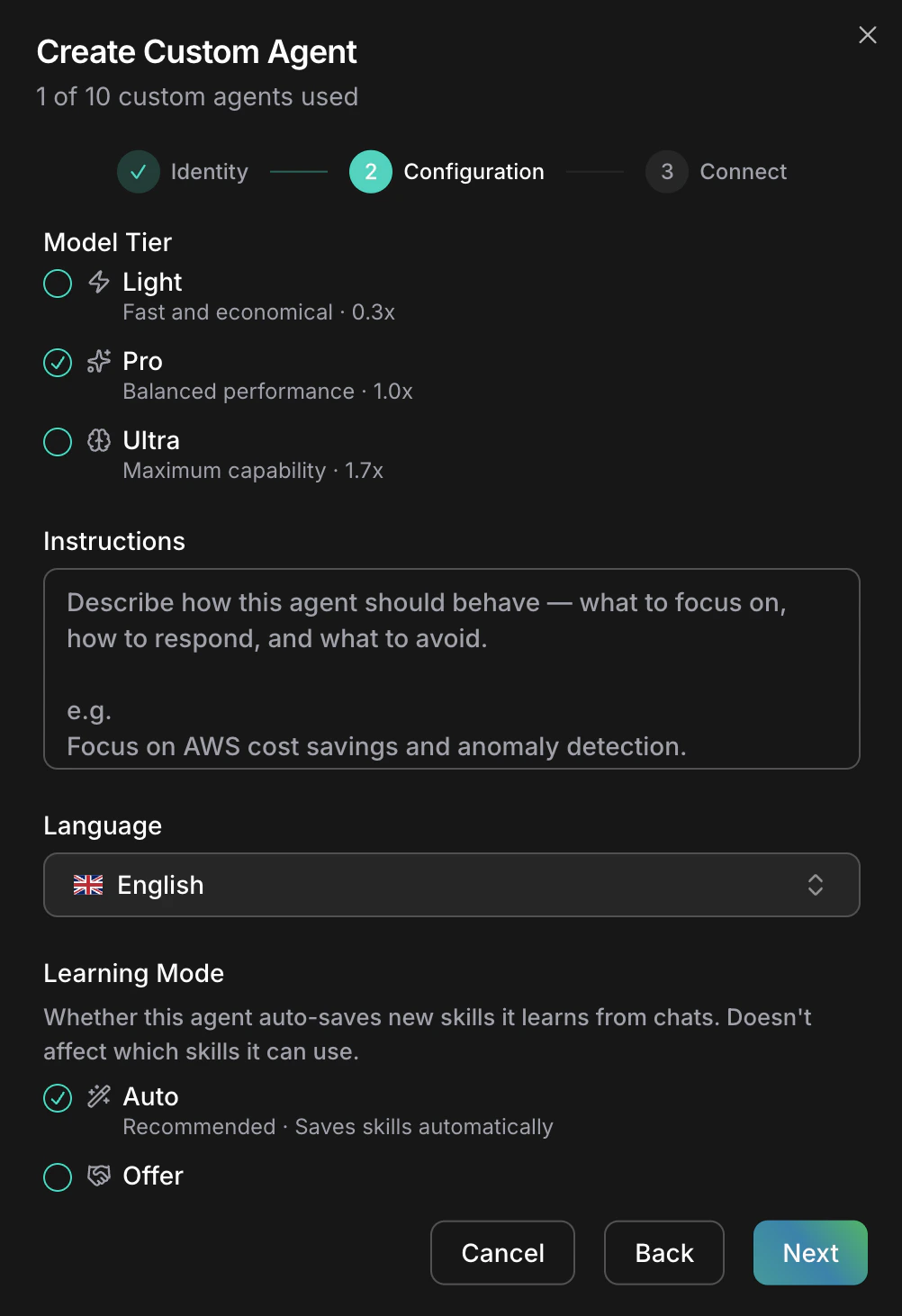
Click Next. The dialog moves to the Configuration step. There, keep Model Tier on Pro (on Free, pick Light), leave Language on Match the user (the agent replies in the language of your message), set Learning Mode to Offer, and paste these Instructions:
You investigate EC2 performance problems in our AWS account.Always start read-only: describe the instance, then check CloudWatch metrics for the last hour.Report findings as a short table: metric, value, what it means.Never stop, reboot, or resize an instance without saying why first.Use the ec2-high-cpu-runbook skill for high CPU or slow instance questions.
Naming the skill in the instructions helps the agent pick it. It doesn’t stop other agents from using the skill.Offer asks you in chat before saving a repeated workflow as a skill. The default, Auto, saves without asking. If the agent offers to save a workflow as a skill during the test, reply no. See Learning Mode. Click Next.Success state: the dialog moves to the Connect step.
3
Give it a connection
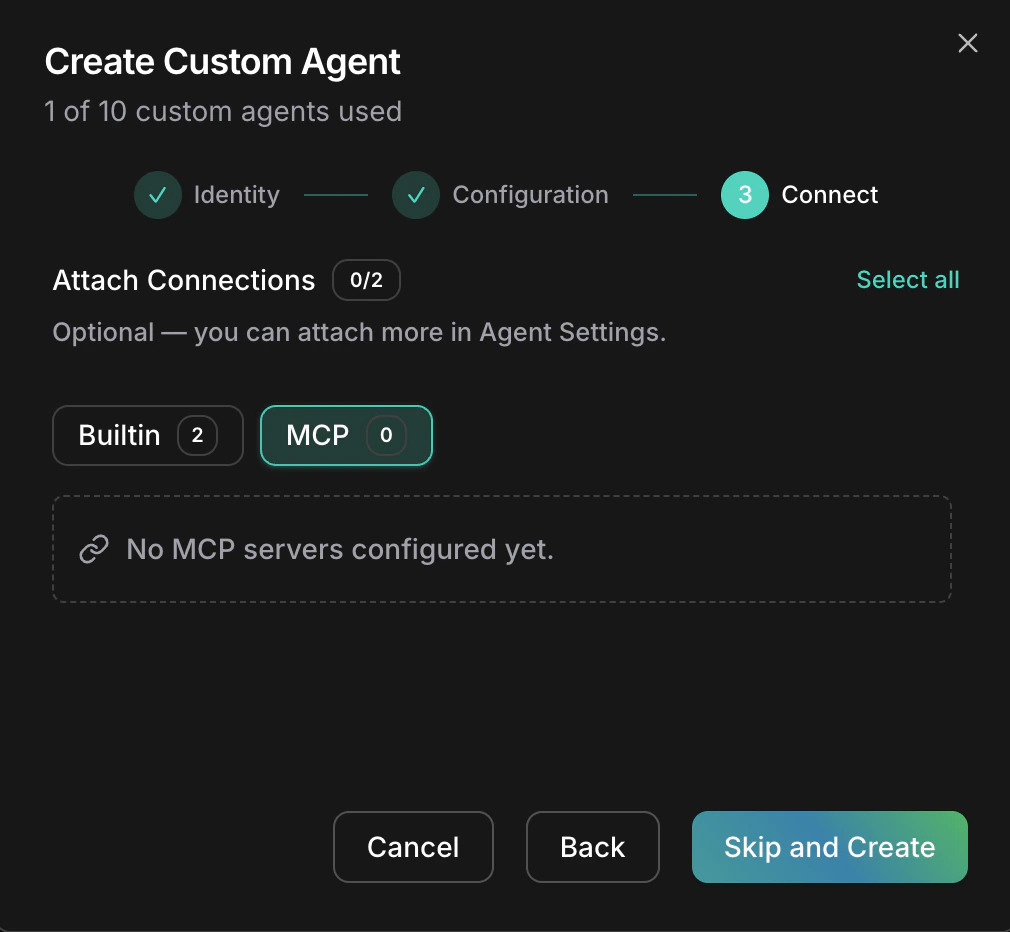
On the Connect step, open the Builtin tab and click Add next to your AWS connection. Builtin lists connections that show Connected in More → Workspace settings → Connections; MCP lists the MCP servers you’ve added. Click Create Agent.
An agent reaches only the connections you attach, so attach only what its job needs. You can add more later on the agent’s Connections tab.Success state:EC2 Triage appears under Custom in More → Workspace settings → Agents, showing 1 connection.
Agents: each custom agent has a name, @mention, role, goal and model tier
4
Make it ask before any change
Approvals decide whether a write (any call that changes something) runs, waits for a person, or is refused. Reads always run. For this test, make every write wait for you.
New workspaces default to Auto, where AI judgment can let a safe write run without asking. An Allow Rule can do the same once CloudThinker turns on Rule enforcement for your workspace, which is off by default. Switch this chat to Manual before testing.
Start a new chat. The approval control sits on the right of the chat prompt box, next to the model picker, and shows the chat’s current mode, Manual or Auto. A new chat starts on the workspace mode. Open the control, or type / and pick Approval, and select Manual.Success state: the approval control shows Manual. This applies to this chat only; your workspace mode doesn’t change. Developers can do this step too.New chats start on the workspace mode again. Automations use their own mode: by default Rules decide first, AI judges the rest, and a write that still needs a person is refused instead of waiting. Rules decide only once CloudThinker turns on Rule enforcement for your workspace; until then they record the verdict they would give and the Approval mode alone decides. See Rules in preview. See Approvals. To make prod changes always wait for a person, add an Ask firstRule.
5
Test the agent
In the same chat, mention the agent. Send one of these prompts.If you have an instance ID, replace the example one:
@ec2-triage Instance i-0abc1234def567890 feels slow. Investigate it.
If you don’t:
@ec2-triage List my running EC2 instances, pick the one with the highest CPU, and investigate it.
The agent describes the instance, reads its CloudWatch metrics, and answers with a metric table and one recommended fix, in the order your runbook sets. A good answer has this shape (your values will differ):
Metric
Value
What it means
CPUUtilization
Above 90% for the last 40 minutes
Sustained high CPU
CPUCreditBalance
Near zero
The burstable instance is throttled
Followed by one recommendation, such as moving the instance to unlimited mode, with the reason and no change applied.If the agent wants to change the instance, the chat shows an approval card with Approve and Decline. Click Decline if you only wanted the diagnosis. With ReadOnlyAccess, the agent can’t change anything even if you approve: the card shows approvals work, but the write itself fails in AWS.If CPU turns out to be normal, expect a table that shows it and a recommendation to wait or look elsewhere. That still counts as success.On Pro, the run draws from bonus, then premium, credits: the free daily credits cover Light chat only. On Free with a Light agent, it draws daily credits. See usage.Success state: the agent’s reply shows a collapsed activity summary line that includes “read 1 skill”. Click it to expand the steps and find the Load Skill step. The answer follows your runbook steps without you restating them, and nothing changed in AWS without your approval.
If this was only a trial, delete the agent in More → Workspace settings → Agents (it frees the slot right away; Free includes one) and the skill in More → Workspace settings → Skills. Until you delete the skill, every agent, including CloudThinker, follows it for high-CPU questions.
Your workspace reached its custom agent limit. Hover the button: the tooltip says Custom agent limit reached. with an Upgrade plan link. Delete an unused agent in More → Workspace settings → Agents, or see plans.
The @mention is rejected
It must start with a lowercase letter and use only lowercase letters, numbers, dots, underscores, and hyphens, up to 63 characters. It also can’t match a name already in use or reserved by CloudThinker.
The @mention doesn't autocomplete
Check that EC2 Triage appears under Custom in More → Workspace settings → Agents. If you created it in another tab, refresh the chat page, then type @ again.
A change ran without an approval card
Check that the chat’s approval control shows Manual. In Manual mode every write asks a person, even one an Allow Rule covers, so a missing card usually means the chat was on Auto. An Allow Rule only decides once CloudThinker turns on Rule enforcement for your workspace; Manual is the control that holds every write today. Reads (describe, list, metrics) never show a card. See Approvals.
The agent says it can't reach AWS
Open the agent in More → Workspace settings → Agents, go to the Connections tab, and check that your AWS connection is attached. Then check the connection itself shows Connected on the Connections page.
The answer ignores the runbook
Open More → Workspace settings → Skills and check that the skill’s switch is on and Chat is checked. Then make the request match the skill’s description, for example by saying “high CPU”. Agents apply a skill only when it fits the task.
I don't see the + button or New Skill
The + button and New Skill need the workspace Admin role. As a Developer, type /create-skill in chat to create the runbook skill instead, or ask a workspace admin to add it.