Documentation Index

Fetch the complete documentation index at: https://docs.cloudthinker.io/llms.txt

Use this file to discover all available pages before exploring further.

Track every cloud asset, run targeted discovery, and act on cost/security/performance findings in one place. Screenshots use AWS as an example, but flows apply to any supported cloud.

The Problem

Cloud infrastructure grows faster than it’s tracked. Resources get provisioned for a project, the project ends, and the resources keep running. Tags are inconsistent. Nobody has a definitive answer to “how many EC2 instances do we have and what are they all doing?” Traditional approaches:
  • AWS Console: must click through each service and region manually
  • aws ec2 describe-instances + spreadsheets: scripts break, output needs manual processing
  • AWS Config: powerful but complex to query, no built-in recommendations
  • Third-party CMDB tools: expensive, require agent installation, go stale quickly
The result: untracked resources are invisible to cost, security, and performance analysis. You can’t optimize what you can’t see.

How Existing Tools Compare

ToolWhat It DoesWhat’s Missing
AWS ConsoleBrowse resources by serviceNo cross-service inventory, no optimization actions
AWS ConfigConfiguration tracking and compliance rulesComplex query language, no AI recommendations, no multi-cloud
AWS Resource ExplorerCross-region resource searchSearch only, no cost/security analysis, no actions
ServiceNow CMDBEnterprise configuration databaseRequires agent installation, expensive, goes stale without active maintenance
Terraform stateIaC-managed resource inventoryOnly covers IaC-managed resources; manual/console-created resources invisible
CloudThinker Resources gives you live discovery, cross-cloud inventory, and direct optimization actions — all in one view, without writing scripts or maintaining agents.

What Makes This Different

  • On-demand and continuous discovery: scan on demand or let CloudKeepers continuously monitor — no agents to install
  • Tag-based scoping: focus discovery on specific environments (production, staging) without noise
  • Inline optimization: hover over any resource to immediately run cost optimization, security scan, or performance check
  • Cloud-agnostic: same workflow for AWS, GCP, and Azure — not separate tools for each provider

What you get

  • Complete inventory across accounts with resource type filters and tags
  • On-demand and continuous discovery across AWS services
  • Inline actions to optimize cost, scan security, and check performance

Prerequisites

  • At least one cloud account connected (images show AWS, but any supported cloud works)
  • Tags you want to use for scoping (e.g., ENV=dev, Environment=production)

Quick Start

1

Open Resources

Go to Infrastructure → Resources to start discovery.
2

Select cloud & services

Choose the account, pick service types to scan, and scope with tags.
3

Review inventory

See discovered assets, savings potential, and run actions per resource.

How access and automation work

  • Agents can operate on any resources your cloud permissions allow, not just the ones you discovered. Discovery makes it easier to manage those resources inside CloudThinker.
  • CloudKeepers runs across all permitted resources in your cloud; it is not limited by resource discovery scope.
  • Assessment requires discovered resources first and only evaluates the resources that have been discovered.

Step-by-step guide

1

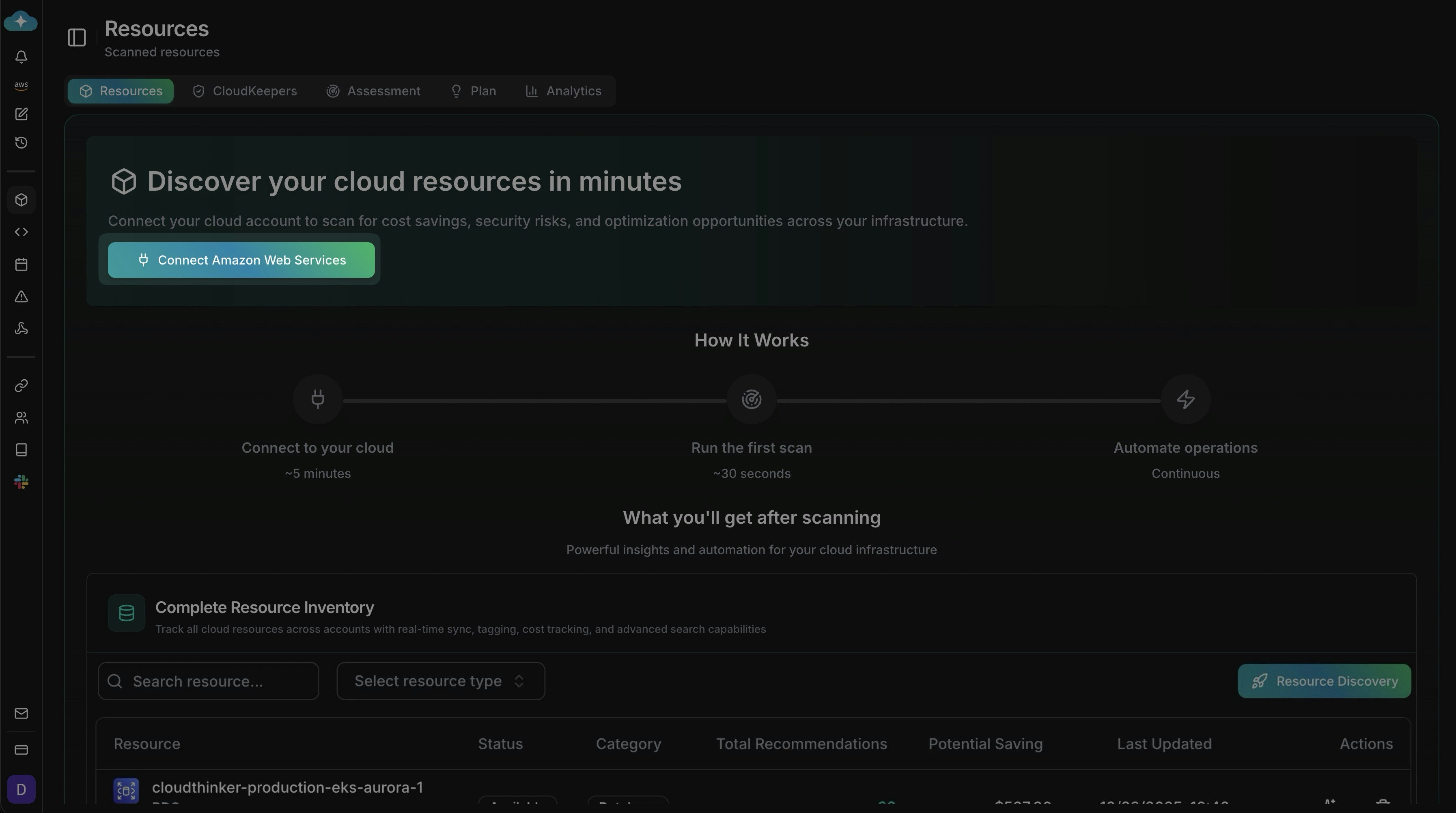
Launch discovery

Click Connect for your cloud (AWS shown here) and start Resource Discovery. The banner shows the flow: connect, run first scan (~30s), then automate.
Resources landing with Connect AWS CTA and how-it-works timeline
2

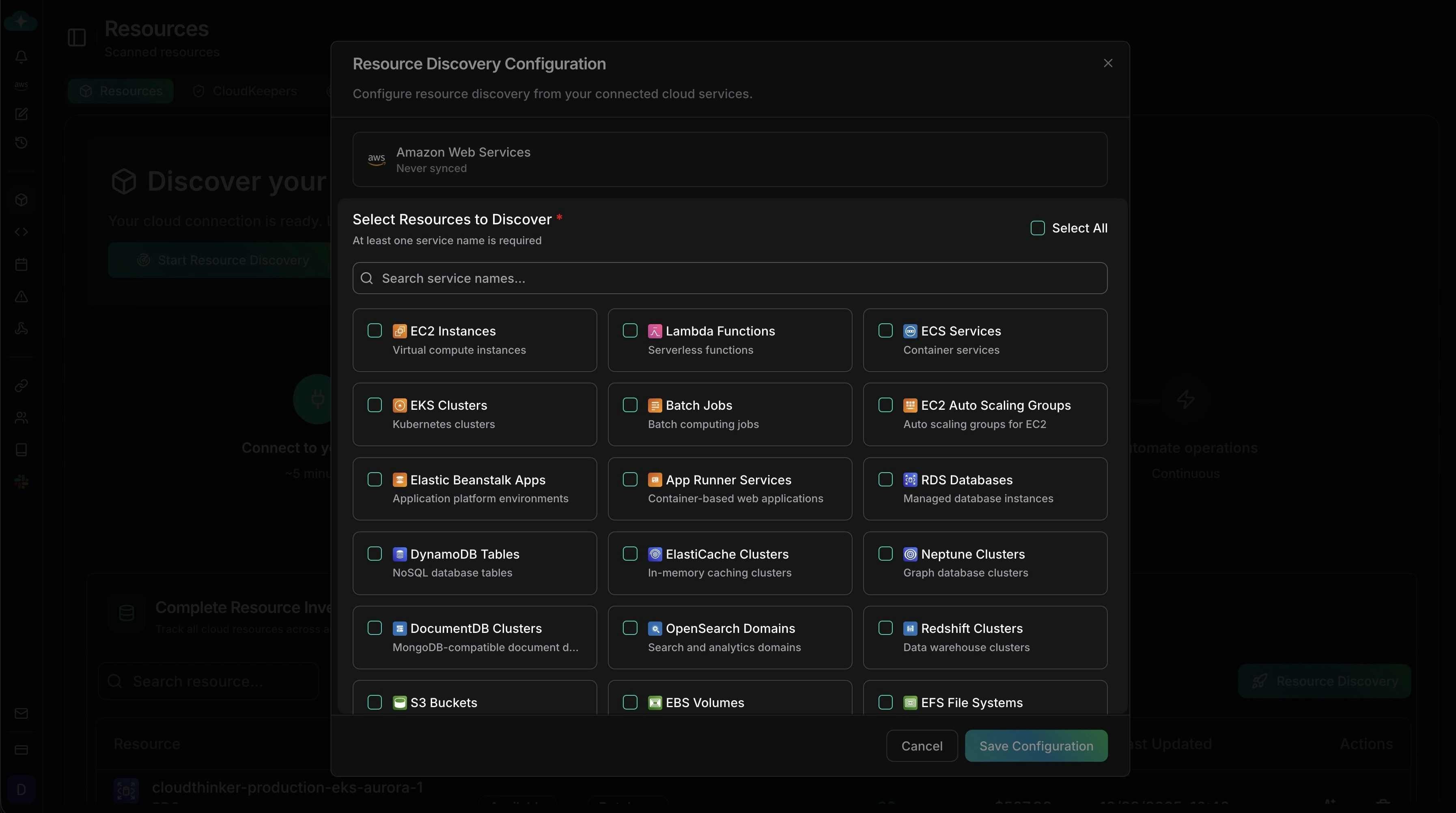
Pick services to scan

Choose the services you want to include (names vary by cloud; AWS shown in the screenshot). Use Select All or search to narrow, then save when it matches your discovery scope.
Service selection modal with AWS service tiles
3

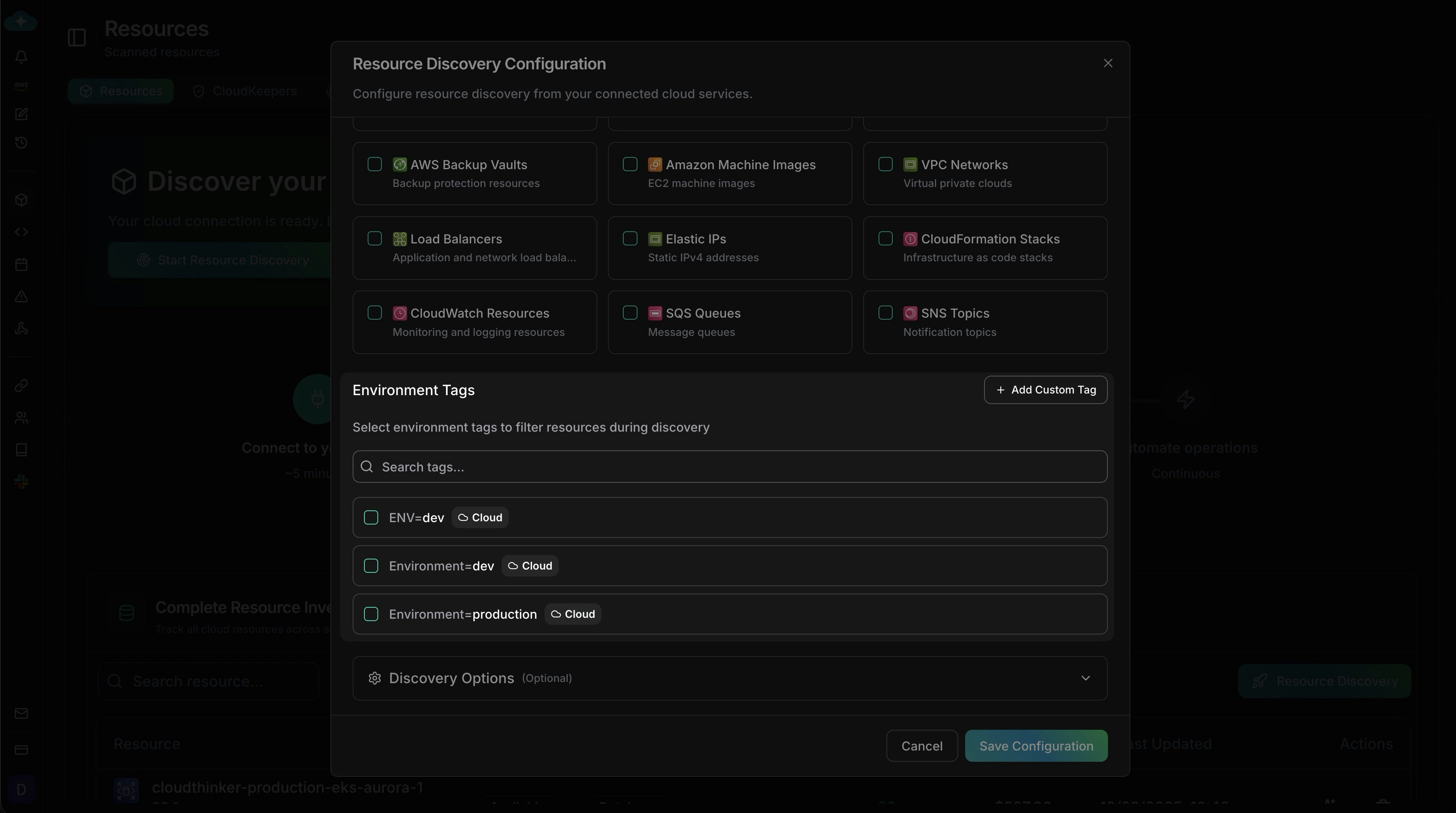
Scope by tags

  • No selected tags → scan all tags/resources.
  • Selecting tags → only resources matching those tags are scanned.
Add environment tags (e.g., ENV=dev, Environment=production) or Add Custom Tag for teams/projects/cost centers to focus the crawl.
Environment tag filters for resource discovery
4

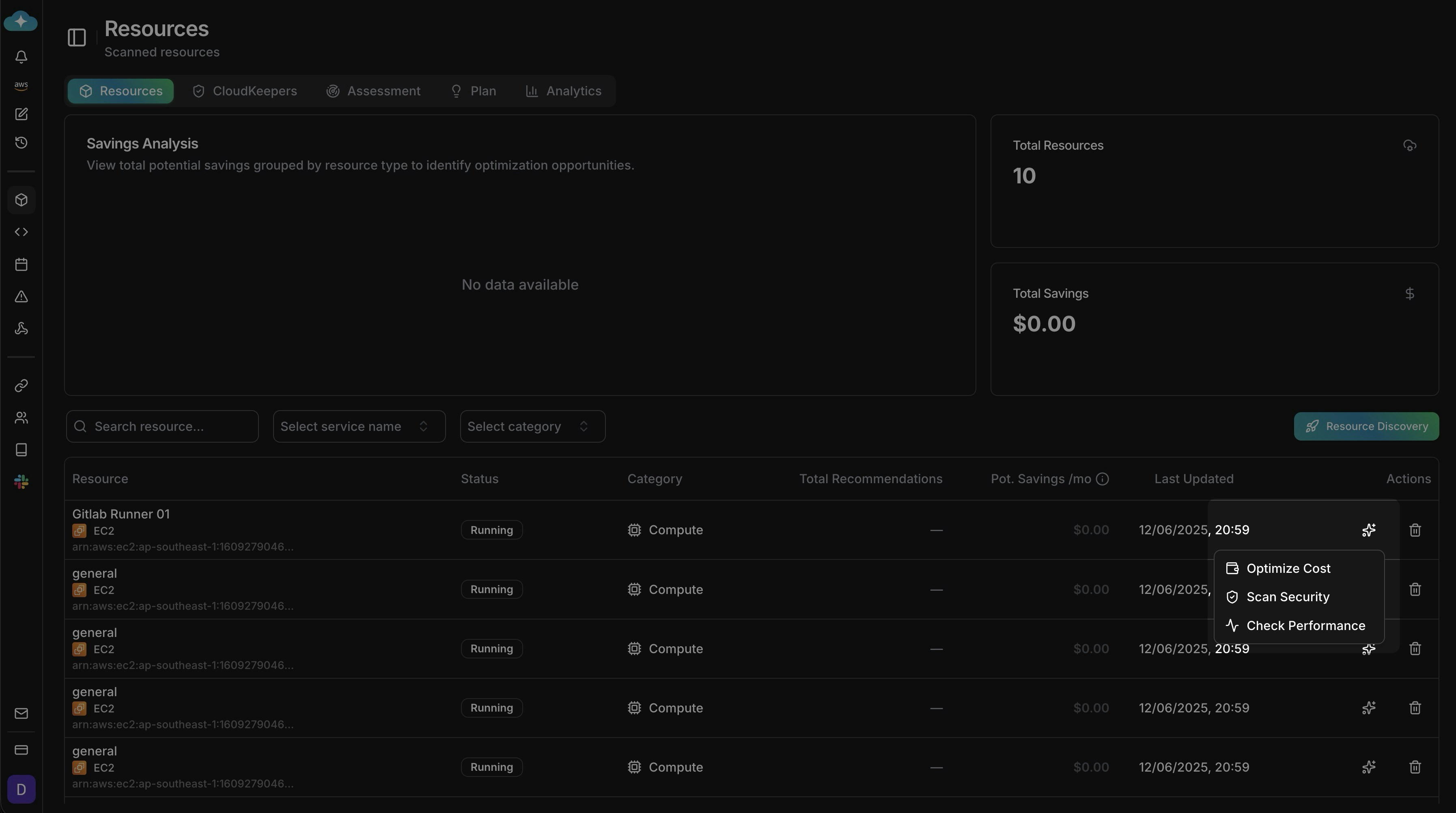
Review inventory and act

  • See totals, potential savings, and per-resource entries.
  • Filter by resource name, service, or category (e.g., Compute).
  • Hover Actions to run Optimize Cost, Scan Security, or Check Performance on a resource.
Use this to triage new findings and trigger targeted actions quickly.
Resource inventory with savings and inline actions

Tips

  • Start broad, then narrow with tags to avoid missing critical resources.
  • Keep discovery configurations versioned (note which services/tags you scan).
  • After each scan, action high-value recommendations first (cost/security).

What’s Next

CloudKeepers

Set up continuous monitoring so new resources are automatically evaluated

Assessment

Run a Well-Architected assessment on your discovered resources

Plan

Manage and track recommendations from resource optimization actions

Topology

Visualize discovered resources and their dependencies