

How it works
- You connect a cloud account. CloudThinker needs read access to billing data. GCP and Azure also ask you to pick a billing source (a BigQuery billing export table or an Azure billing scope) the first time.
- CloudThinker runs the first scan. It pulls up to 13 months of billing history, then checks each billed service with read-only commands. The scan runs in the background, so you can leave the page.
- Optimize scores and ranks. You get a Cost Health score, a list of findings (savings opportunities, each with an estimate), and a daily baseline that flags unusual cost changes.
- You decide what happens next. You review each finding, ask CloudThinker to analyze or implement it, or record why it needs no action. Nothing changes in your cloud account during a scan.
- A daily refresh keeps numbers current. Once cost data exists, CloudThinker pulls new billing data once a day. A Developer or Admin can turn it off from the Updated button in the page header, which shows the last update time and whether Daily refresh is on.
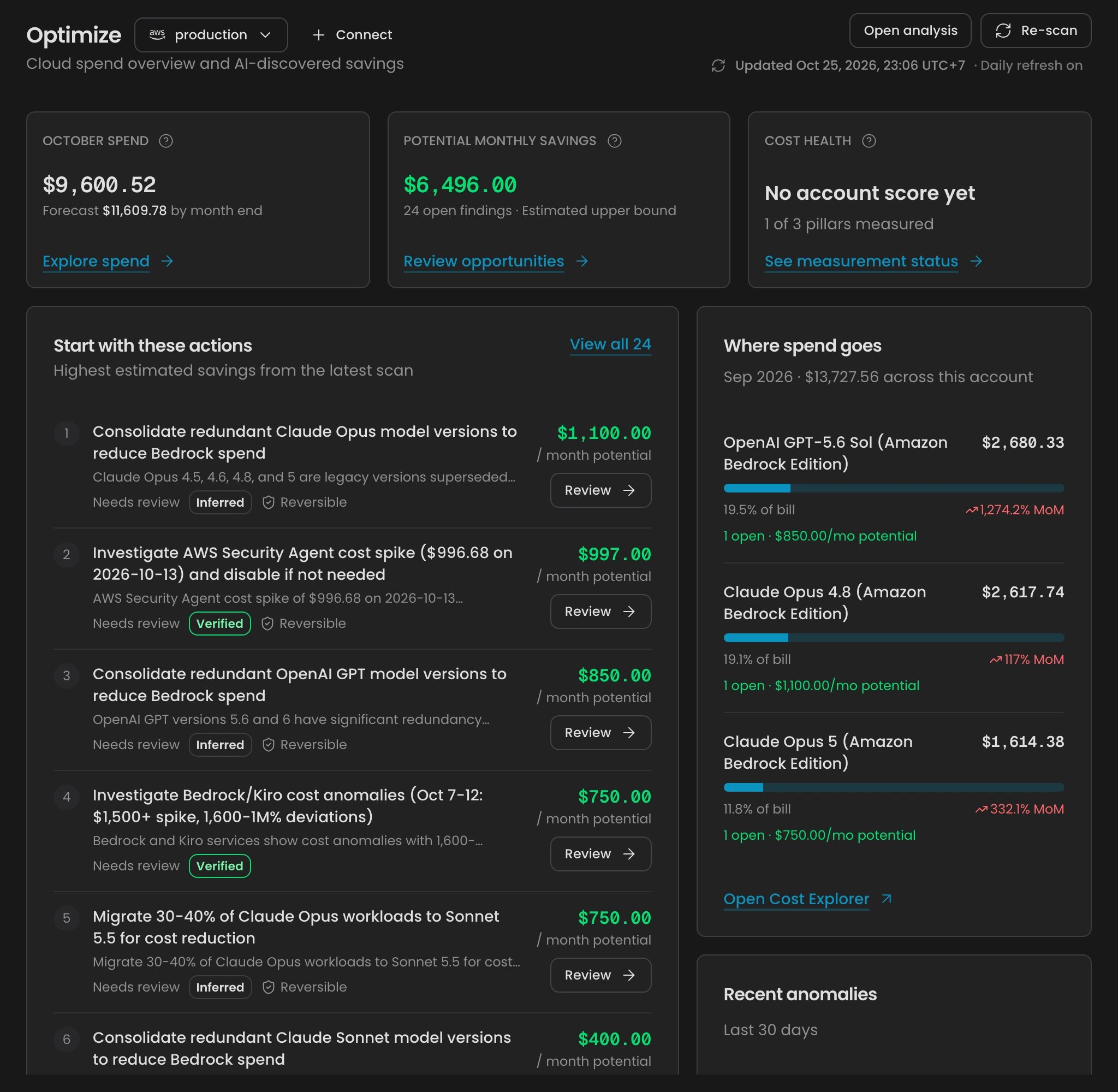
Optimize overview for an AWS account: month-to-date spend, potential savings, Cost Health, and the first actions to take
What you can do
Every page lives under Optimize in the sidebar, in three groups: Account (Overview, Cost Health), Actions (Findings, Anomalies), and Analytics (Cost Explorer, Reports). Each page stays scoped to the account you pick in the selector next to the page title.
Settings holds the billing source and refresh health for an account. It isn’t in the sidebar: see Optimize settings.
The Overview page shows three cards (month-to-date spend with a forecast, Potential monthly savings, and Cost Health), then Start with these actions, Where spend goes, and Recent anomalies.
How savings are proposed and approved
A scan only proposes. It saves each finding with evidence, an estimated monthly saving, effort, and risk, and nothing in your cloud account changes until someone selects Implement on a finding. In between, your team triages the finding on the board and picks what CloudThinker should do with it: analyze its impact, write an implementation plan, answer a question about it, or make the change. Findings covers the classes, the four statuses, and each action. Implement is an agent action on your cloud, so it goes through the same Approvals rules and mode as any other. If every Implement should wait for a person, switch Approvals to Manual. Every change an agent makes goes through your workspace’s Approvals first. On the default Auto · Rules + AI · Ask me mode, AI judgment can let a safe change run without asking — and an Allow Rule can too, once CloudThinker turns on Rule enforcement for your workspace. Choose Manual to approve every change yourself.Potential monthly savings is an upper bound, not a guarantee. Findings can overlap, so closing every open finding saves less than the total. See Savings estimates.
Key concepts
Provider differences
Billing data that arrives late never shows as zero spend. Optimize keeps the last good data and shows when it was updated.
Multi-account setups
Each cloud account is its own connection, and every Optimize page shows one account at a time.- AWS Organizations: Optimize reads only the connected account’s own spend, even when it’s the management (payer) account. Connect each member account you want covered. See Work across multiple AWS accounts.
- Cross-account view: generate a report on Optimize → Reports with All accounts scope. Each account gets its own section, and different currencies are never added together. There’s no single savings total across accounts.
What Optimize covers
Covered:- Savings findings on each billed service, down to resource level (idle, oversized, or unused resources)
- Commitment coverage: RI and Savings Plans on AWS, committed use discounts on GCP, reservations on Azure
- Tagging and cost allocation checks in Cost Health
- Daily anomaly detection per service
- Clouds other than AWS, GCP, and Azure
- Cost split by Kubernetes namespace or workload. Clusters show up as their billed nodes and services
- Realized savings or ROI after a change
- Cost drops. Anomaly detection flags increases only
Data and access
- What’s stored: the billing rows Optimize pulls, plus findings, Cost Health results, and anomaly records. They’re kept in your workspace, so pages and reports load without calling your provider again.
- Who sees it: every workspace member can read every Optimize page. Running scans and working findings needs Developer, and connecting an account or marking a finding needs Admin. See Roles.
Get started
Optimize quickstart
Connect an account, run the first scan, and share a report
Work your findings
Prioritize savings and record the outcome of each one
Review anomalies
Check unusual daily cost changes and investigate them
Send cost reports
Generate a report now or put one on a schedule