

The scenario
Your organization maintains separate AWS accounts for production, development, and staging. A centralized platform team needs cross-account visibility without giving everyone production access or constantly losing context by switching workspaces. The solution: connect CloudThinker to a primary AWS account, create IAM roles in each target account, and define shortcuts that tell Alex which account to operate in — all from one workspace.Walkthrough
1
Connect the primary AWS account
In Connections, add your primary AWS account using Role-Based authentication. This is the hub account — all cross-account requests originate from its IAM identity.Success state: the connection shows Connected status in the Connections panel.
2
Create cross-account IAM roles
In each target AWS account, create an IAM role with the following trust policy. Replace Attach
PRIMARY_ACCOUNT_ID with your hub account’s AWS account ID.ReadOnlyAccess (or a scoped read-only policy) to the role to keep permissions minimal.Success state: you can verify each role is assumable by running aws sts assume-role from the primary account.3
Define account-switching shortcuts
Open the Shortcuts panel (top right of any workspace) and create one command shortcut per target account. Set the Init Step to instruct the agent to assume the target role ARN before your prompt runs.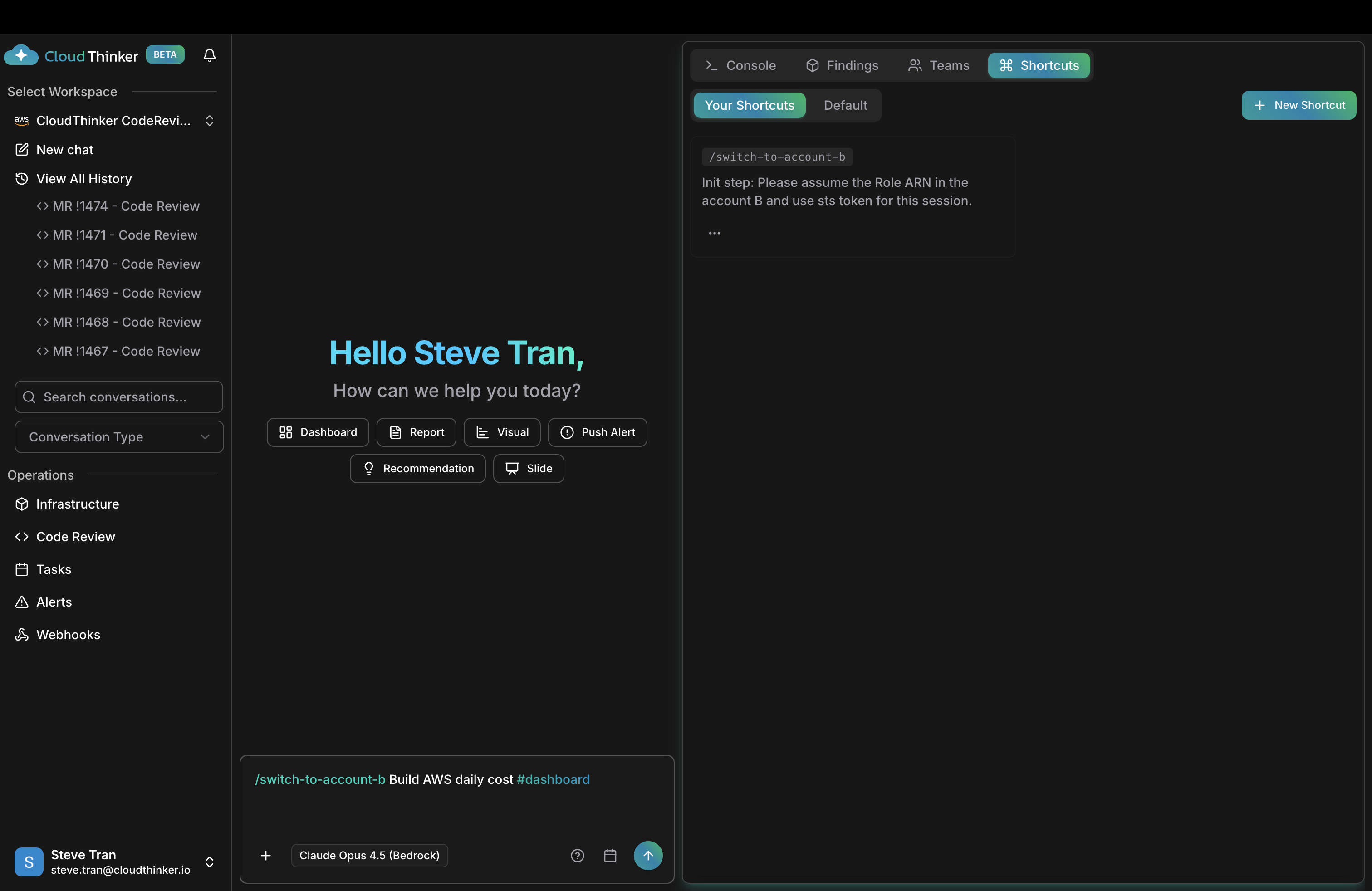
Shortcuts panel with an AssumeRole init step
Success state: each shortcut name appears in the Shortcuts autocomplete list when you type
/.4
Run cross-account operations
Prefix any prompt with the shortcut name. Alex assumes the target role before acting, so every result is scoped to that account.Alex assumes the production role, queries Cost Explorer and CloudWatch in that account, and returns a cost dashboard scoped to production.Success state: Alex’s response references resources from the target account, not the hub.
What made this work
- Role-Based authentication — the hub account’s IAM identity performs the
sts:AssumeRolecall, so no long-term credentials are shared or stored for each target account. - IAM least privilege — attaching
ReadOnlyAccessto each cross-account role limits what agents can do, even if a shortcut is misused. Use specific principal ARNs instead of:rootwhere your security policy allows. - Shortcuts — an init step injected before your prompt sets the account context without retyping the role ARN every time. Shortcuts also let you scope knowledge or instructions per account.
- Alex (Cloud Engineer) — handles cost analysis, resource auditing, and infrastructure queries across AWS accounts once the role context is set.
- Workspaces — when teams need full isolation (separate knowledge bases, audit trails, or access controls per account), create one workspace per account instead of using shortcuts.
Try it yourself

Connect an AWS account
Set up Role-Based authentication so Alex can assume roles across accounts.
Commands
Create shortcut commands with Init Steps for reusable prompt setups.
Workspaces
Create dedicated workspaces when you need full isolation between accounts.