

Choose the right intensity
You pick the intensity each time you run a pentest, and Deep dive is the top one. It does everything Full does, then keeps going over several passes that reuse earlier evidence to follow connected attack paths. It costs the most time and credits, so point it at staging with disposable data only. The other three levels are compared in the intensity table. Pick Deep dive when:- Your app has several user roles or tenants and you need to know if one can reach another’s data.
- A workflow spans several steps (checkout, approvals, invites) where order and state matter.
- A Full run found something that hints at a bigger attack path.
- A release changed authentication, permissions, or billing logic.
Prerequisites
- An app registered in Cyber with a verified domain. See Run a pentest.
- The workspace Admin or Developer role. Either role can launch any intensity, including Deep dive. There’s no separate Admin-only setting or Approvals step for destructive runs: the confirm dialog is the only extra gate. See Roles.
- Enough credits for a long run. If the app has past runs, open one: its activity feed shows the credits used by each completed pass. With no baseline, set a credit limit on your first Deep dive. See Usage.
- Your WAF, IDS and on-call team know the run is coming, and you have approval to test any assets you don’t host yourself. See Before your first run for traffic source, private targets and rate limits.
Prepare the app
Deep dive can only test what it can reach. Inputs you skip leave those areas untested, and the run reports them as limitations, not as clean.
Logins and repositories you add from the run dialog are saved to the app, the same as adding them in Settings. A saved login isn’t proof of signed-in testing: a password is saved without signing in, and is first tried when the run starts. A failed sign-in ends the run as Failed. Check the report’s limitations before you treat protected areas as tested.
Saved passwords are stored encrypted and passed to the run privately. The agent never sees them as text. Each run uses the login version saved at launch, so editing a login later doesn’t change a run in progress. Use dedicated test accounts with no access to real customer data, since captured responses are kept as finding evidence. See Data protection.
Start a Deep dive run
1
Open the app
Open your app from the Apps list in the Cyber sidebar, or go to Cyber → Overview and select it. Check its Settings link in the app header for scope and saved logins.
2
Pick Deep dive
Click Run pentest in the app header. Under the testing intensity cards, select Deep dive. A warning appears: Deep dive includes destructive testing.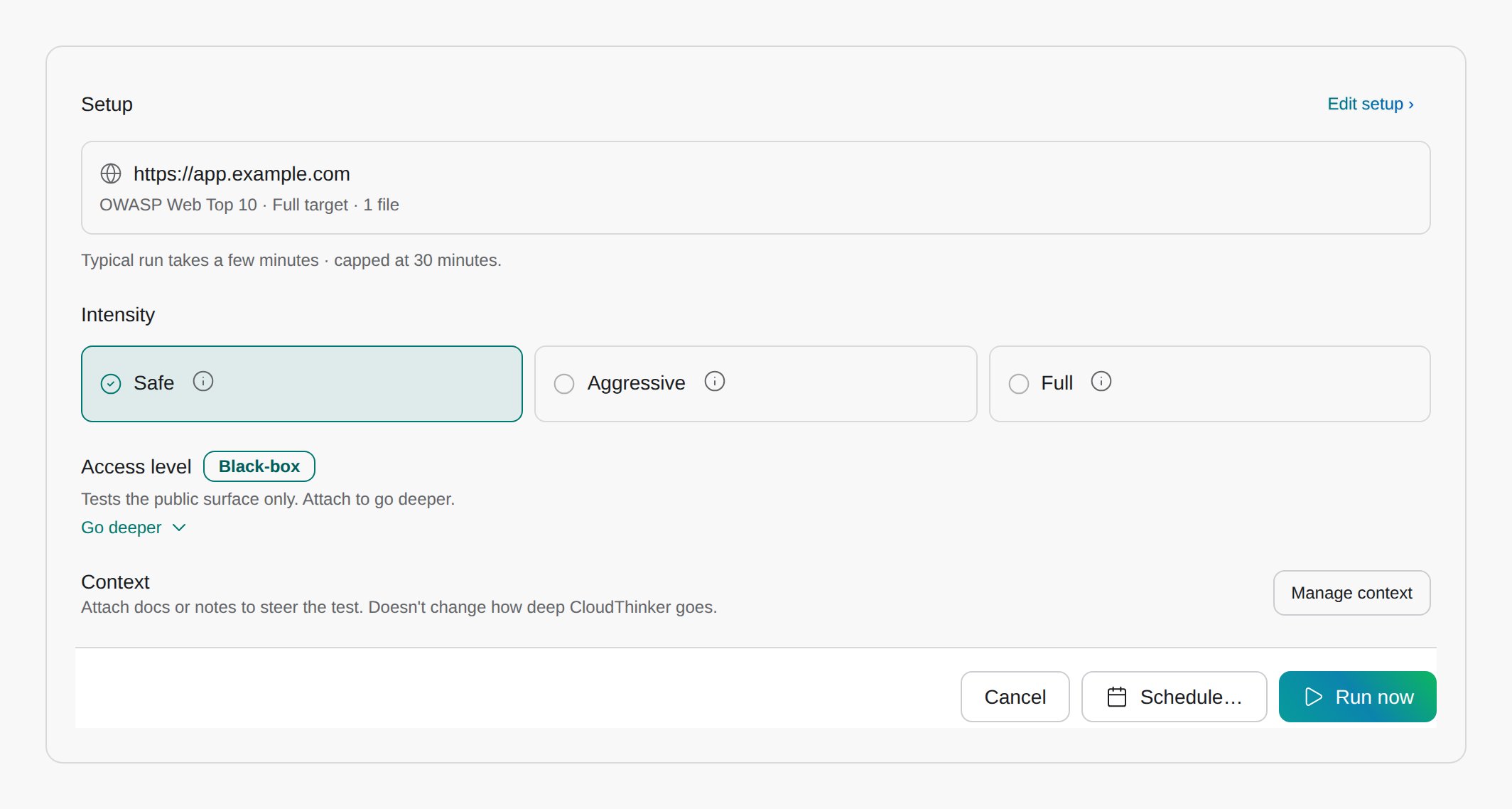
3
Add logins or a repository (optional)
Skip this if the app’s Settings already has them. Otherwise, under Access level, click Go deeper, then Add auth for a test user or Attach repository for source code.
4
Set a credit limit (optional)
Enter a whole number in Credit limit · Optional, or leave it blank (No run limit). Read How the credit limit works before you rely on it.
5
Launch and confirm
Click Run Deep dive pentest. In the Run a Deep dive pentest? dialog, check the target, then click Run Deep dive. Click Keep editing to go back.Success state: the run opens with live progress as CloudThinker works. You can find it later in the app’s Runs tab.
Stop a run
Open the run from the app’s Runs tab, click Stop run, then Stop run again in the Stop this run? dialog. The run is cancelled and can’t be resumed. Findings collected so far are kept. Requests already sent to your app aren’t undone, so check the test data afterwards. If nobody stops it, a run ends when CloudThinker has no more useful work, a limit is reached, or three hours pass.Schedule Deep dive
Click Schedule… instead of running now, set the recurrence, and confirm Schedule Deep dive. Scheduled runs can’t carry a credit limit. The only spending control for them is the workspace’s monthly credit limit. Scheduled runs also sign in only with Long-lived token test users. With other login methods, a scheduled Deep dive doesn’t sign in as your test users, so it can’t test anything behind the login (see Add test users). Each launch and stop is recorded in Audit logs under the Cyber category, so you can see who started a destructive run.How the credit limit works
The credit limit is a soft stop for one manual Deep dive run, not a hard spending cap.
Valid values are whole numbers from 1 to 1,000,000,000. While the run is going, its Credit usage panel shows usage as a percentage of your limit, and switches to Writing your report once testing stops.
What happens during the run
- CloudThinker maps the app and tests it the way a Full run does, within your scope.
- At the end of each pass, it reviews saved findings, coverage, and logins, then picks the next question worth testing, such as “can a user in tenant A open tenant B’s invoice?”
- Each new pass keeps the evidence and notes from earlier passes.
- The run closes when CloudThinker finds no more useful work or a limit is reached. It then writes a report that lists what it couldn’t test.
Read the results
Open the run from the app’s Runs tab to see its timeline, findings, and report.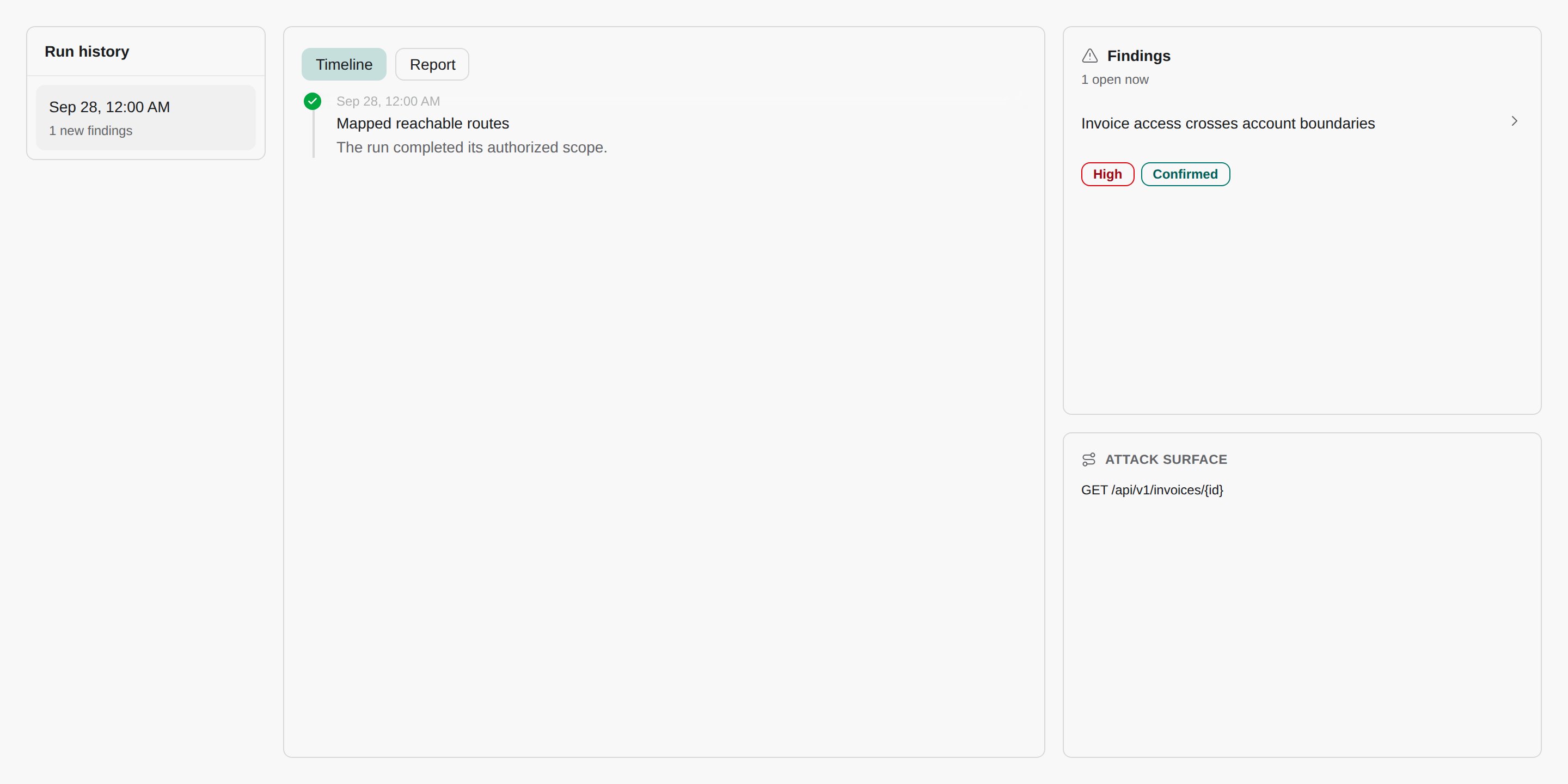
- Findings: each one carries the attack flow, request and response evidence, impact, and a fix. Triage them in Findings.
- Logins: the report names areas behind a failed login. Those weren’t tested.
- Limitations in the report: blocked paths, missing access, and checks that didn’t finish.
Troubleshooting
For every Cyber problem in one place, see Cyber troubleshooting.Deep dive shows Coming soon and can't be selected
Deep dive shows Coming soon and can't be selected
Deep dive is on by default, but it can be turned off for a whole CloudThinker; it isn’t tied to your plan. While it’s off you can’t start or schedule it, so choose Full for destructive testing. To get it turned on, ask CloudThinker support, or whoever runs CloudThinker for your company.
Schedule… is disabled
Schedule… is disabled
You entered a credit limit. Clear Credit limit · Optional to schedule. Credit limits apply to manual runs only.
A saved login no longer works
A saved login no longer works
The run dialog tests saved session tokens before launch. Click Update login to replace the credentials, or Test again after fixing the account. The run can’t start until the session token works.
Usage went past my credit limit
Usage went past my credit limit
Expected. The limit stops new passes at 90%, but the pass in progress and the report still finish. Set a lower limit next time if you need more headroom.
Next steps
Triage security findings
Read each finding’s proof and move it through your fix workflow
Create Cyber reports
Download the run report or export selected findings