> ## Documentation Index
> Fetch the complete documentation index at: https://docs.cloudthinker.io/llms.txt
> Use this file to discover all available pages before exploring further.

# Operating Multi-AWS Accounts

> Operate multiple AWS accounts from one workspace using IAM AssumeRole shortcuts to switch account context on demand

A platform team managing production, development, and staging AWS accounts can query costs, audit security, and investigate incidents across all three — from a single CloudThinker workspace.

## The scenario

Your organization maintains separate AWS accounts for production, development, and staging. A centralized platform team needs cross-account visibility without giving everyone production access or constantly losing context by switching workspaces. The solution: connect CloudThinker to a primary AWS account, create IAM roles in each target account, and define shortcuts that tell [Alex](/guide/agents/alex) which account to operate in — all from one workspace.

## Walkthrough

<Steps>
  <Step title="Connect the primary AWS account">
    In **Connections**, add your primary AWS account using [Role-Based authentication](/guide/connections/aws). This is the hub account — all cross-account requests originate from its IAM identity.

    **Success state:** the connection shows **Connected** status in the Connections panel.
  </Step>

  <Step title="Create cross-account IAM roles">
    In each target AWS account, create an IAM role with the following trust policy. Replace `PRIMARY_ACCOUNT_ID` with your hub account's AWS account ID.

    ```json theme={null}
    {
      "Version": "2012-10-17",
      "Statement": [
        {
          "Effect": "Allow",
          "Principal": {
            "AWS": "arn:aws:iam::PRIMARY_ACCOUNT_ID:root"
          },
          "Action": "sts:AssumeRole"
        }
      ]
    }
    ```

    Attach `ReadOnlyAccess` (or a scoped read-only policy) to the role to keep permissions minimal.

    **Success state:** you can verify each role is assumable by running `aws sts assume-role` from the primary account.
  </Step>

  <Step title="Define account-switching shortcuts">
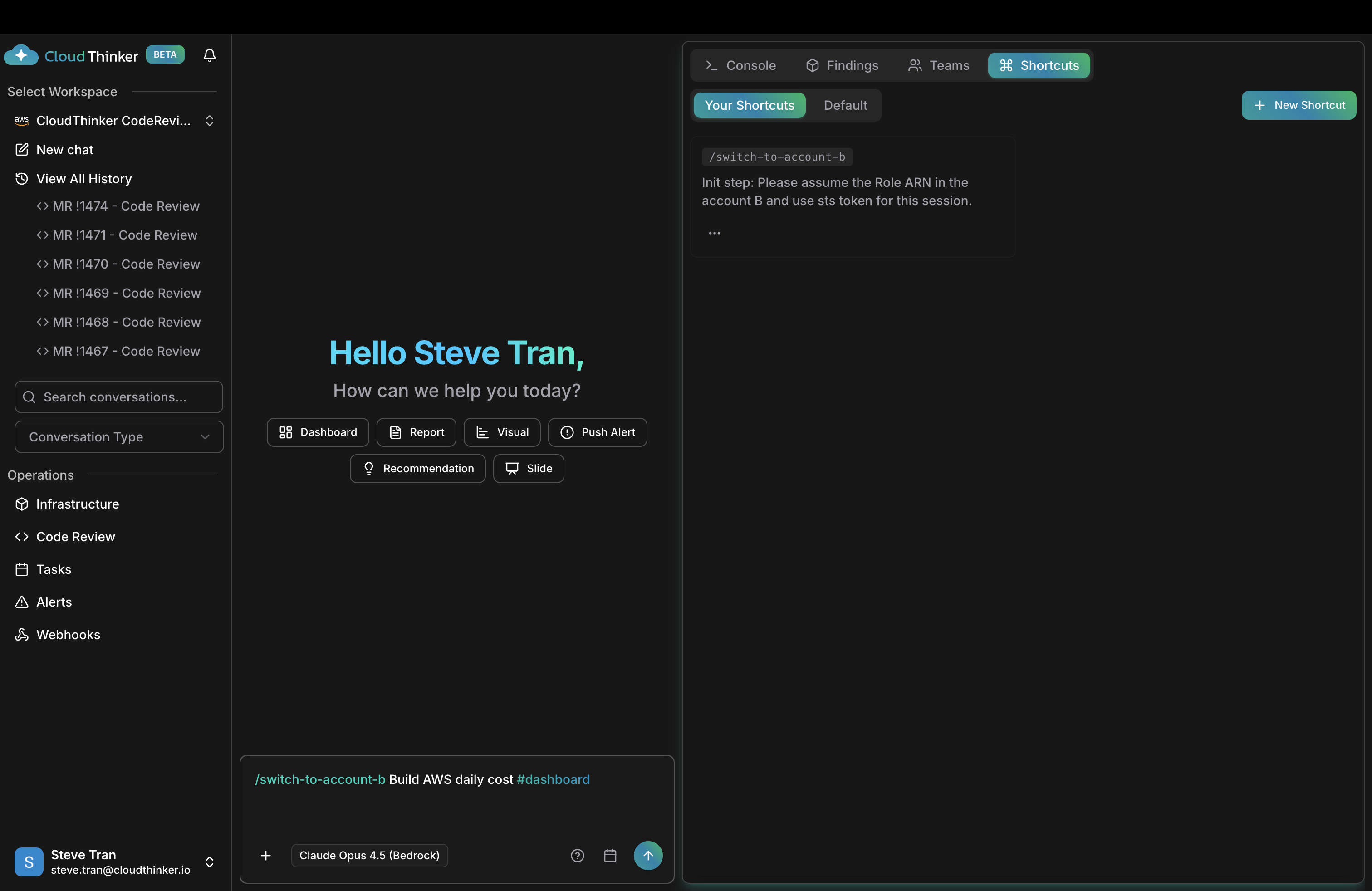
    Open the **Shortcuts** panel (top right of any workspace) and create one shortcut per target account. Set the **Init Step** to instruct the agent to assume the target role ARN before your prompt runs.

    <Frame>
      <img src="https://mintcdn.com/cloudthinker/S_fEGzF9eIzSA0qp/images/use-cases/01-shortcut-assume-role.png?fit=max&auto=format&n=S_fEGzF9eIzSA0qp&q=85&s=fbc8e044b7785b71358bcd3e07bad1c1" alt="CloudThinker Shortcuts panel showing account switching shortcut" width="3024" height="1964" data-path="images/use-cases/01-shortcut-assume-role.png" />
    </Frame>

    <p style={{textAlign: 'center', fontSize: '0.9em', color: '#666', marginTop: '8px'}}>Shortcuts panel with an AssumeRole init step</p>

    | Shortcut name        | Init step                                                                                                     |
    | -------------------- | ------------------------------------------------------------------------------------------------------------- |
    | `/switch-to-prod`    | `Please assume arn:aws:iam::111111111111:role/CloudThinkerAccessRole and use the STS token for this session.` |
    | `/switch-to-dev`     | `Please assume arn:aws:iam::222222222222:role/CloudThinkerAccessRole and use the STS token for this session.` |
    | `/switch-to-staging` | `Please assume arn:aws:iam::333333333333:role/CloudThinkerAccessRole and use the STS token for this session.` |

    **Success state:** each shortcut name appears in the Shortcuts autocomplete list when you type `/`.
  </Step>

  <Step title="Run cross-account operations">
    Prefix any prompt with the shortcut name. Alex assumes the target role before acting, so every result is scoped to that account.

    ```text theme={null}
    /switch-to-prod @alex #dashboard Build an AWS daily cost report
    ```

    Alex assumes the production role, queries Cost Explorer and CloudWatch in that account, and returns a cost dashboard scoped to production.

    ```text theme={null}
    /switch-to-dev @alex #report Summarize unused EC2 instances in the dev account
    ```

    **Success state:** Alex's response references resources from the target account, not the hub.
  </Step>
</Steps>

## What made this work

* **[Role-Based authentication](/guide/connections/aws)** — the hub account's IAM identity performs the `sts:AssumeRole` call, so no long-term credentials are shared or stored for each target account.
* **IAM least privilege** — attaching `ReadOnlyAccess` to each cross-account role limits what agents can do, even if a shortcut is misused. Use specific principal ARNs instead of `:root` where your security policy allows.
* **Shortcuts** — an init step injected before your prompt sets the account context without retyping the role ARN every time. Shortcuts also let you scope knowledge or instructions per account.
* **[Alex (Cloud Engineer)](/guide/agents/alex)** — handles cost analysis, resource auditing, and infrastructure queries across AWS accounts once the role context is set.
* **[Workspaces](/guide/workspaces)** — when teams need full isolation (separate knowledge bases, audit trails, or access controls per account), create one workspace per account instead of using shortcuts.

## Try it yourself

<CardGroup cols={2}>
  <Card title="Connect an AWS account" icon="https://mintcdn.com/cloudthinker/aLd-ttc-SCW-aFky/images/icons/aws.svg?fit=max&auto=format&n=aLd-ttc-SCW-aFky&q=85&s=45d526a3e9345214c0345f277da2e829" href="/guide/connections/aws" width="24" height="24" data-path="images/icons/aws.svg">
    Set up Role-Based authentication so Alex can assume roles across accounts.
  </Card>

  <Card title="Workspaces" icon="layer-group" href="/guide/workspaces">
    Create dedicated workspaces when you need full isolation between accounts.
  </Card>
</CardGroup>
