> ## Documentation Index
> Fetch the complete documentation index at: https://docs.cloudthinker.io/llms.txt
> Use this file to discover all available pages before exploring further.
# Custom Skills
> Create, enable, and assign workspace skills that encode your team's knowledge for agents to apply on every task
Custom skills are workspace-private instruction packages that encode your team's knowledge — review checklists, runbooks, naming conventions, compliance rules — so agents apply it consistently on every task. You write the context once; agents load it automatically wherever the skill is assigned.
## What skills encode
Agents arrive knowing what good looks like in general, not what good looks like in your codebase, your runbooks, or your review standards. A skill externalizes that context so nobody retypes it into every conversation, and senior expertise becomes a team-wide artifact instead of tacit knowledge held by one engineer.
| Domain | Examples |
| ----------------- | ------------------------------------------------------------------------------------------------------- |
| Code review | Naming conventions, API design rules, security review checklists, performance hot-spot patterns |
| Incident response | Escalation policies, runbook selection rules, service-specific debugging order |
| Cloud operations | Account-tag conventions, environment promotion rules, cost-attribution policies, compliance constraints |
| Documentation | Style guide, terminology, voice rules |
If you find yourself typing the same instruction into more than two prompts, that instruction belongs in a skill.
## Prerequisites
* A CloudThinker workspace
* Familiarity with the [SKILL.md format](/guide/skills/skill-format) if you plan to write skills manually
## Create a skill
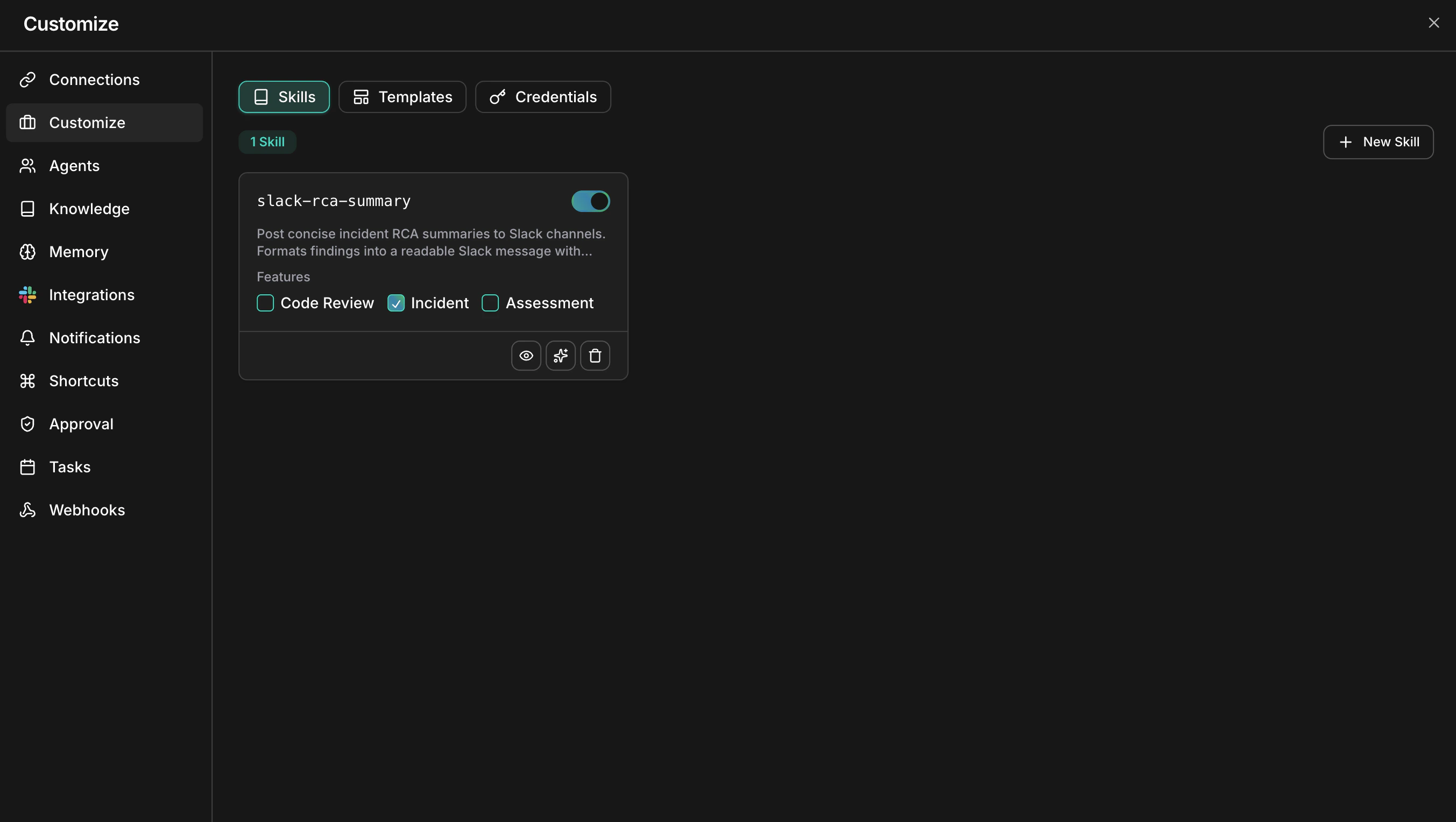
Navigate to **Skills** from the sidebar. This page lists every skill in the workspace with its enable toggle and feature assignments.
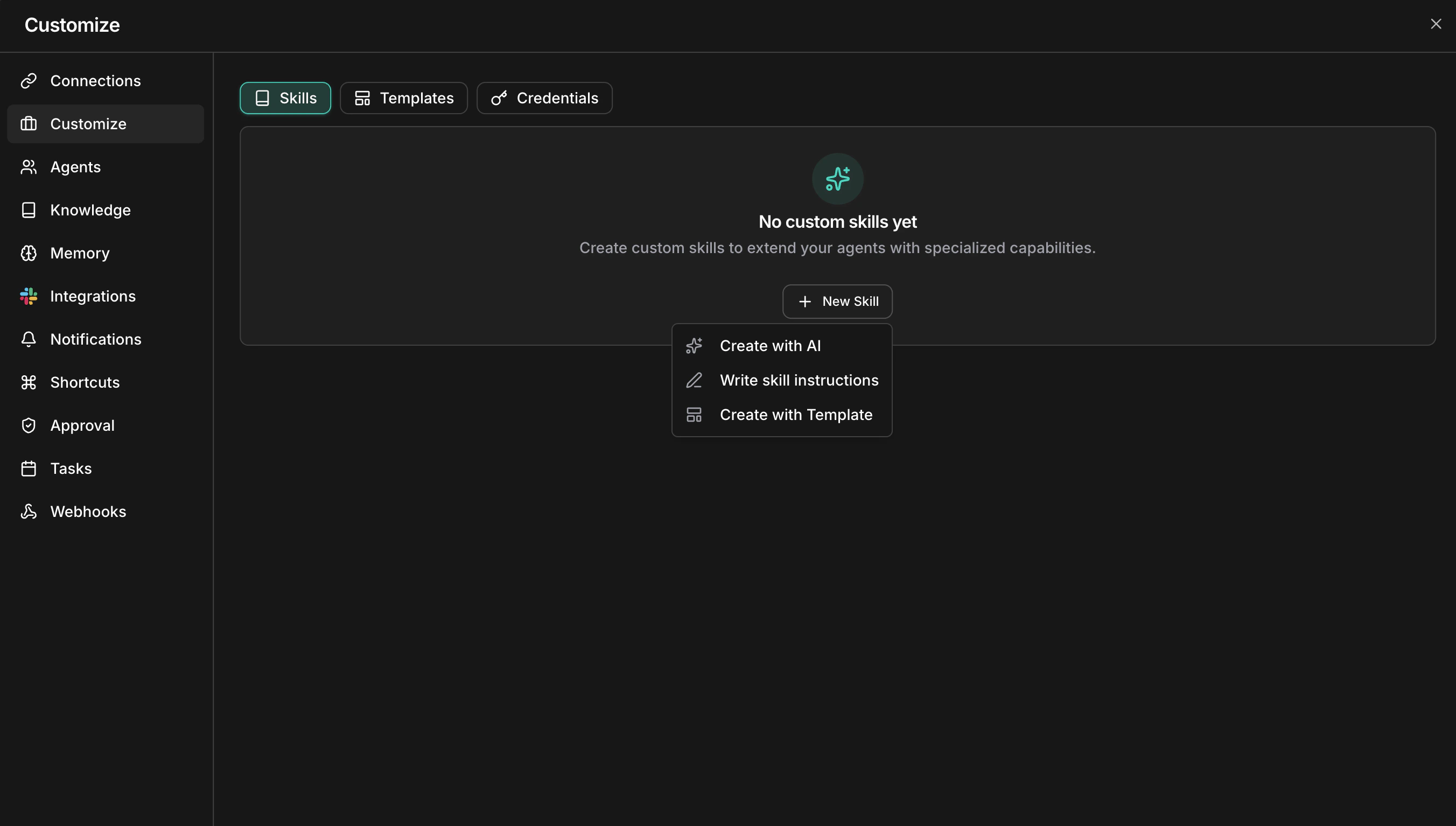
 Choose a creation method from the dropdown.
 Describe what you need in plain language and let the skill creation agent draft it.
1. Click **Create with AI** to open a chat session.
2. Describe one concrete rule your team applies — a naming convention, a review checklist item, a deprecation warning.
3. The agent generates a SKILL.md with frontmatter and structured instructions.
4. Review the draft and click **Save**.
This is the fastest path for a first skill. You can refine it later with AI editing.
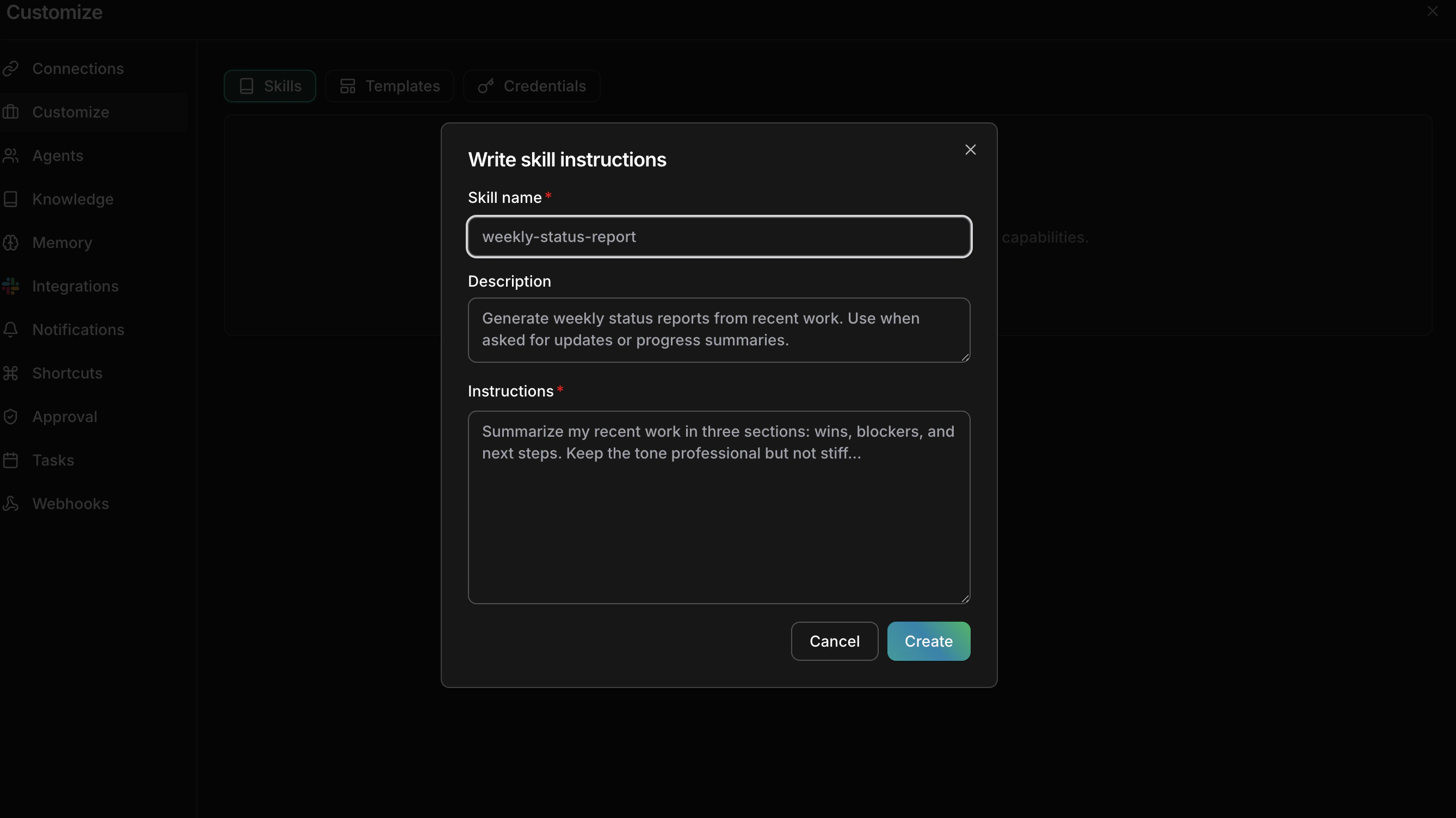
Author the skill manually using the form.
1. Click **Write skill instructions**.
2. Fill in the fields: **Name** (a slug-format identifier such as `api-review-standards`), **Description** (a short summary), and **Instructions** (the full skill content in Markdown).
3. Click **Save**.
Describe what you need in plain language and let the skill creation agent draft it.
1. Click **Create with AI** to open a chat session.
2. Describe one concrete rule your team applies — a naming convention, a review checklist item, a deprecation warning.
3. The agent generates a SKILL.md with frontmatter and structured instructions.
4. Review the draft and click **Save**.
This is the fastest path for a first skill. You can refine it later with AI editing.
Author the skill manually using the form.
1. Click **Write skill instructions**.
2. Fill in the fields: **Name** (a slug-format identifier such as `api-review-standards`), **Description** (a short summary), and **Instructions** (the full skill content in Markdown).
3. Click **Save**.
 See [Skill format](/guide/skills/skill-format) for the SKILL.md structure and a complete example.
**Success state:** the new skill appears as a card on the Skills page.
## Enable and assign a skill
A skill does nothing until you turn it on and scope it to at least one feature.
Use the switch on the skill card. Disabled skills are saved but never loaded — useful for drafting changes without affecting live agent behavior.
Check the features where the skill applies. A skill can belong to several features at once:
* **Code Review** — applied during PR analysis
* **Incident** — applied during incident investigation and root cause analysis
* **Assessment** — applied during infrastructure assessments
Assign the skill only where it belongs; a code-review naming convention does not need to load during incident triage.
Trigger a task in an assigned feature — open a pull request if the skill covers Code Review. Agents consult assigned skills during the Analyze phase of the [agentic loop](/index), so your rule should appear in the agent's reasoning and comments.
**Success state:** the agent's output cites or applies your rule without you restating it. If it doesn't, the instruction was probably too abstract — rewrite it with concrete examples and retest.
## Manage skills
### View details
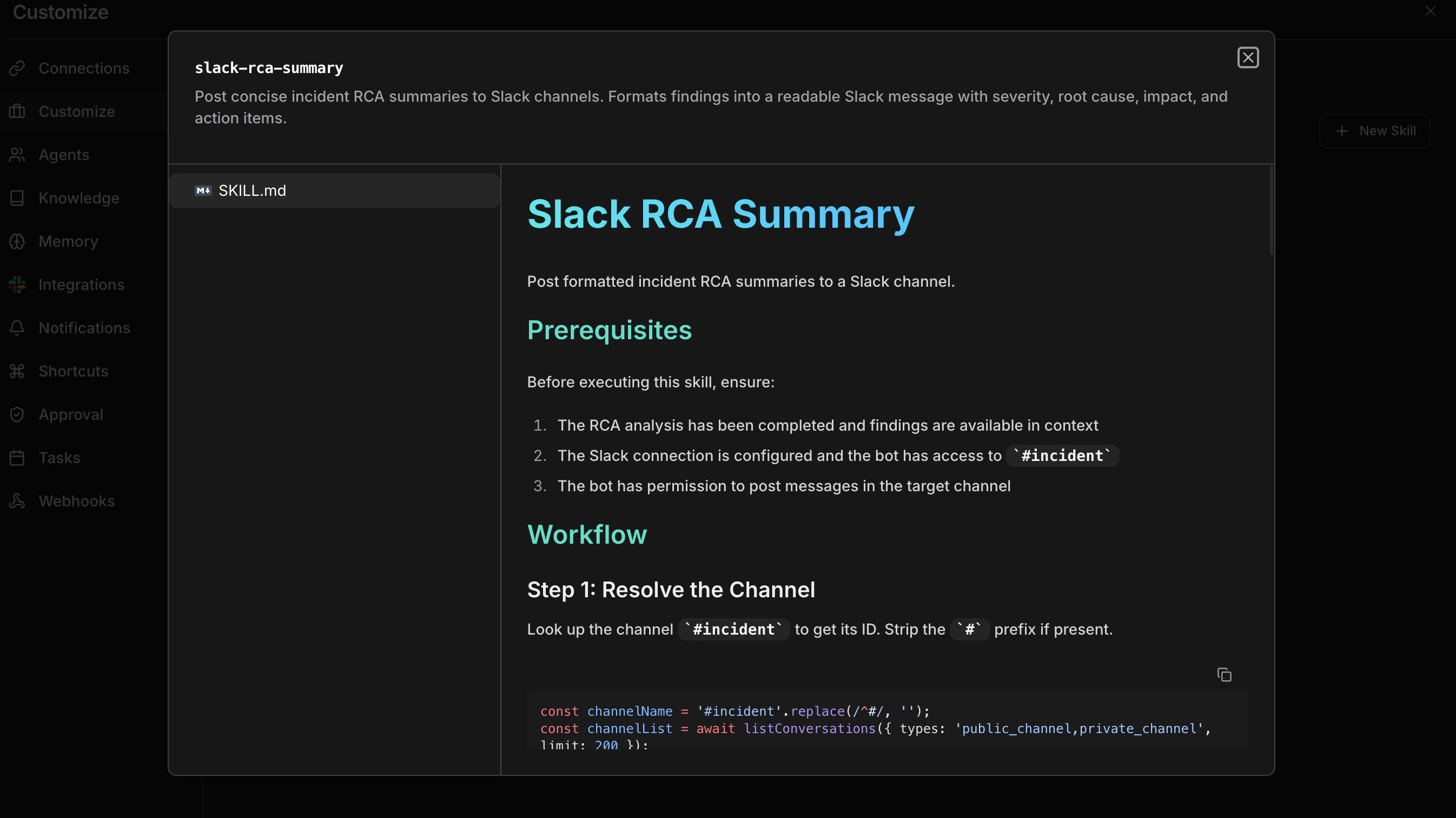
Click a skill card to open the detail view: file tree on the left, rendered markdown on the right. Read the instructions end to end — a rule that is ambiguous to you will be ambiguous to the agent.
See [Skill format](/guide/skills/skill-format) for the SKILL.md structure and a complete example.
**Success state:** the new skill appears as a card on the Skills page.
## Enable and assign a skill
A skill does nothing until you turn it on and scope it to at least one feature.
Use the switch on the skill card. Disabled skills are saved but never loaded — useful for drafting changes without affecting live agent behavior.
Check the features where the skill applies. A skill can belong to several features at once:
* **Code Review** — applied during PR analysis
* **Incident** — applied during incident investigation and root cause analysis
* **Assessment** — applied during infrastructure assessments
Assign the skill only where it belongs; a code-review naming convention does not need to load during incident triage.
Trigger a task in an assigned feature — open a pull request if the skill covers Code Review. Agents consult assigned skills during the Analyze phase of the [agentic loop](/index), so your rule should appear in the agent's reasoning and comments.
**Success state:** the agent's output cites or applies your rule without you restating it. If it doesn't, the instruction was probably too abstract — rewrite it with concrete examples and retest.
## Manage skills
### View details
Click a skill card to open the detail view: file tree on the left, rendered markdown on the right. Read the instructions end to end — a rule that is ambiguous to you will be ambiguous to the agent.
 ### Edit with AI
From the detail view, click **Edit with AI** to refine the skill through conversation — add examples, remove ambiguity, restructure sections. The agent reads the existing content before making changes.
### Delete
Remove a skill permanently from the detail view.
Deleting a skill cannot be undone. Disable it instead if you may need it again.
## Writing effective skills
* **Be specific.** Concrete rules with examples beat vague guidelines — "use kebab-case for multi-word paths" outperforms "follow our naming style".
* **One domain per skill.** Separate security rules from performance guidelines so you can assign them independently.
* **Lead with examples.** Agents follow demonstrated patterns more reliably than abstract explanations.
* **Test on one feature first.** Enable a new skill on a single feature, review a few real runs, then assign it more broadly.
* **Iterate.** Use **Edit with AI** to sharpen skills based on review results and team feedback.
## Next steps
Learn the SKILL.md file structure, frontmatter reference, and best practices for writing effective instructions.
Understand how skills fit into the CloudThinker platform and agent workflow.
### Edit with AI
From the detail view, click **Edit with AI** to refine the skill through conversation — add examples, remove ambiguity, restructure sections. The agent reads the existing content before making changes.
### Delete
Remove a skill permanently from the detail view.
Deleting a skill cannot be undone. Disable it instead if you may need it again.
## Writing effective skills
* **Be specific.** Concrete rules with examples beat vague guidelines — "use kebab-case for multi-word paths" outperforms "follow our naming style".
* **One domain per skill.** Separate security rules from performance guidelines so you can assign them independently.
* **Lead with examples.** Agents follow demonstrated patterns more reliably than abstract explanations.
* **Test on one feature first.** Enable a new skill on a single feature, review a few real runs, then assign it more broadly.
* **Iterate.** Use **Edit with AI** to sharpen skills based on review results and team feedback.
## Next steps
Learn the SKILL.md file structure, frontmatter reference, and best practices for writing effective instructions.
Understand how skills fit into the CloudThinker platform and agent workflow.