> ## Documentation Index
> Fetch the complete documentation index at: https://docs.cloudthinker.io/llms.txt
> Use this file to discover all available pages before exploring further.
# Atlassian
> Connect Atlassian Jira and Confluence to CloudThinker for issue tracking, knowledge base, and project management
Connect your Atlassian organization to enable CloudThinker agents to track Jira issues, search Confluence knowledge, and pull ticket context during incident response and code review. CloudThinker connects via Atlassian's **Rovo MCP server** using domain allowlisting.
***
## Prerequisites
* An **Atlassian Cloud** organization on any plan (Free, Standard, Premium, or Enterprise).
* **Organization Admin** role to add the CloudThinker domain in Atlassian Administration.
Only an Organization Admin can add domains in Atlassian AI settings. Once added, all workspace members can use the integration within their existing permissions.
***
## Setup
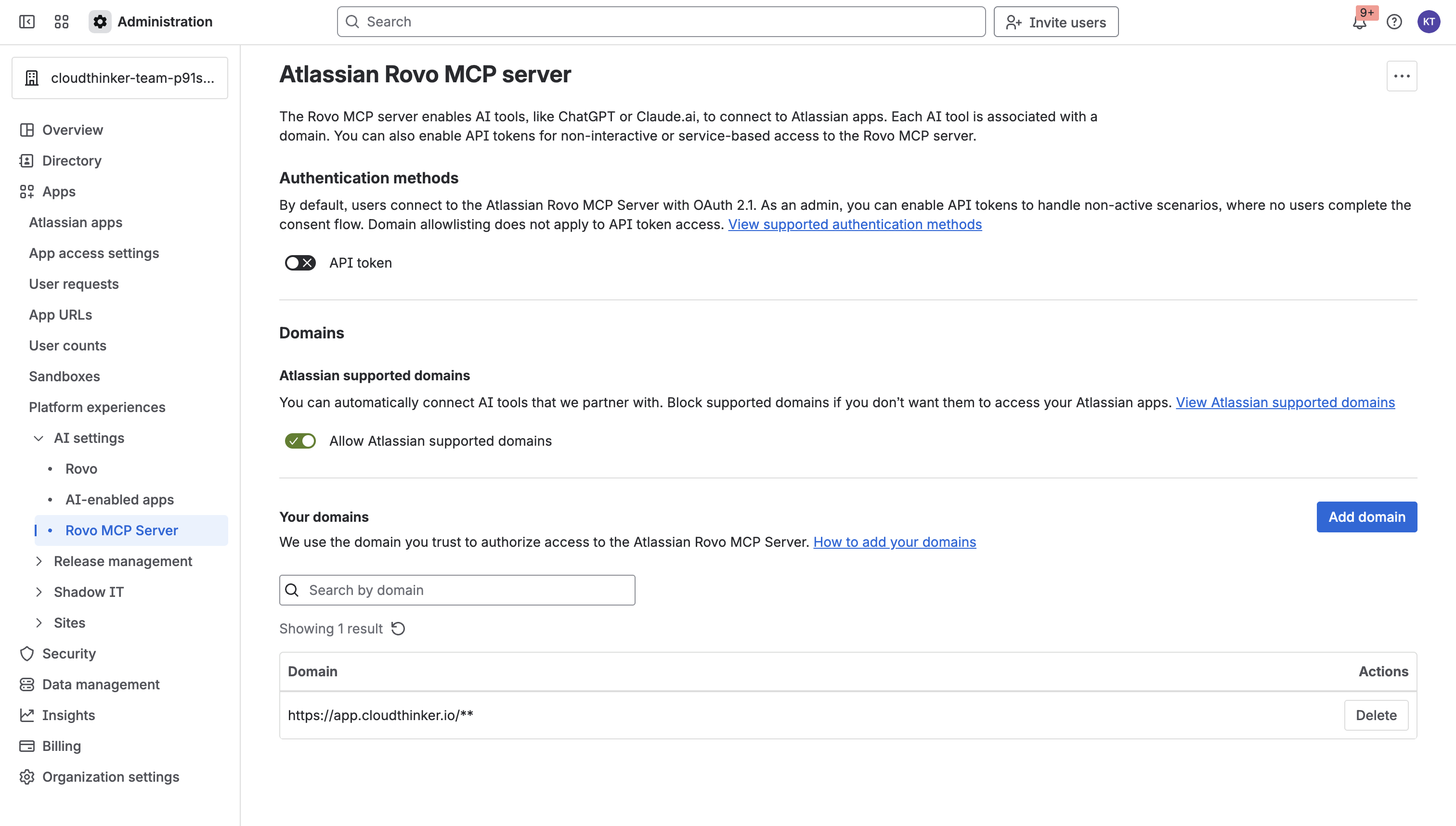
Go to [admin.atlassian.com](https://admin.atlassian.com) → **Apps → AI settings → Rovo MCP server**.
Click **Add domain** and enter:
```
https://app.cloudthinker.io/**
```
Click **Save**.
Atlassian AI settings — Rovo MCP server domain allowlist
If your organization enforces IP allowlisting, configure the allowlist under **Atlassian Administration** (not in AI settings). Requests must come from allowed IPs even for trusted domains.
After saving, CloudThinker shows a **Connected** status for the Atlassian integration.
***
## Connection details
| Field | Description | Value |
| ------------------- | ---------------------------------------------------------- | -------------------------------- |
| **Allowed domain** | CloudThinker domain added to the Rovo MCP server allowlist | `https://app.cloudthinker.io/**` |
| **Connection type** | Authentication mechanism | Rovo MCP server domain allowlist |
***
## Required permissions
* **Organization Admin** role is required to add the domain during setup.
* Once connected, agents act with the **existing permissions of the authorizing user** — CloudThinker cannot access Jira projects or Confluence spaces the user cannot see.
Follow least privilege: authorize the connection from a user account whose Atlassian permissions match exactly what CloudThinker needs.
***
## Agent capabilities
Once connected, agents can access Jira and Confluence data within the authorizing user's permissions.
| Capability | Description |
| ---------------------------- | ------------------------------------------------------------ |
| **Jira issue search** | Find and retrieve issues across projects and sprints |
| **Jira issue management** | Create, update, and comment on issues |
| **Confluence search** | Search and read pages and spaces |
| **Project & sprint context** | Pull ticket context during incident response and code review |
### Verify the connection
```text theme={null}
@alex list open Jira issues from the PLATFORM project and summarize blockers
```
### Example prompts
```text theme={null}
@alex find all open Jira issues blocking the current sprint and #report priority and assignee
@alex search Confluence for the incident response runbook
@oliver find all open Jira security issues and summarize the critical ones
```
***
## Troubleshooting
CloudThinker cannot connect because the domain was not saved. Return to admin.atlassian.com → Apps → AI settings → Rovo MCP server and confirm `https://app.cloudthinker.io/**` appears in the list.
Users on blocked IPs see a permission error even when the domain is allowlisted. Add CloudThinker's IPs under Atlassian Administration (not in AI settings) and ensure requests originate from allowed addresses.
CloudThinker acts with the authorizing user's permissions. Ensure the authorizing user has access to the Jira projects and Confluence spaces you want agents to reach.
Domain allowlist changes can take a few minutes to propagate. Wait briefly, then refresh the CloudThinker Connections page.
***
## Security
* **Least privilege** — grant only the permissions the agents need for your use case; start read-only and widen later.
* **Read-only by default** — use read-only credentials unless you want agents to make changes through this connection.
* **Rotate credentials** — rotate keys and tokens on your normal schedule; CloudThinker picks up the new value when you update the connection.
* **Revoke on offboarding** — remove the credential at the provider when you delete a connection or a teammate leaves.
- **Organization Admin only** — only an Organization Admin can add or remove the CloudThinker domain; audit this permission list regularly.
- **User-bounded access** — CloudThinker actions are bounded by the authorizing user's Atlassian permissions; always authorize from a least-privilege account.
***
## Related
Track secret incidents as Jira issues
ITSM incident management